

A laptop battery is one of the important parts of your device. Whether you use your laptop for work, study, gaming, or entertainment, battery performance affects your overall experience. Over time, every battery loses its ability to hold a full charge, making it important to understand how long a laptop battery lasts and how to keep it healthy.
If you’ve ever wondered how long does a laptop battery lasts, the answer depends on several factors. The type of battery, your daily usage, charging habits, and even your laptop’s settings all play a role in determining its lifespan.
In this guide, we’ll explain everything you need to know about laptop battery lifetime, why batteries wear out, how to check laptop battery condition, and practical tips to keep your laptop healthy for as long as possible.
How Long Should A Laptop Battery Last?
When people ask how long a laptop battery lasts, they usually mean one of two things. They want to know the runtime per charge, or they want to know the total number of years the battery will work. There are two ways to measure a laptop battery’s lifespan:
- Battery life on a single charge: How many hours your laptop runs before needing to recharge.
- Overall battery lifetime: How many years the battery remains healthy before it needs replacing.
On a single charge, most modern laptops last between 4 and 12 hours, depending on the model and your workload. Lightweight tasks such as web browsing, writing documents, or watching videos use less power than demanding tasks like gaming, video editing, or running multiple applications.
In terms of overall lifespan, most laptop batteries last 3 to 5 years. This usually equals around 300 to 1,000 charge cycles, depending on the battery technology and manufacturer. A charge cycle means using 100% of the battery’s capacity. For example, using 50% today and another 50% tomorrow counts as one complete cycle.
| Laptop Type | Runtime (Light Use) | Runtime (Heavy Use) | Battery Lifetime |
| Ultrabooks and Thin Laptops | 10–15 hours | 3–5 hours | 3–5 years |
| Standard Business Laptops | 6–10 hours | 2–4 hours | 2–4 years |
| Budget Laptops | 4–7 hours | 1–3 hours | 2–3 years |
| Gaming Laptops | 3–6 hours | 1–2 hours | 1.5–3 years |
As batteries age, their capacity gradually decreases. Even if your laptop still works well, the battery may no longer provide the same number of hours as it did when it was new. This decline is normal and happens with every rechargeable lithium-ion battery.
Factors That Determine Laptop Battery Lifespan
Several factors influence how long a laptop battery remains healthy before it needs replacement. While all rechargeable batteries wear out over time, proper care can help maximize their lifespan.
1. Battery Type
Most modern laptops use lithium-ion or lithium-polymer batteries. These batteries are designed to withstand hundreds of charging cycles while providing reliable performance. However, they naturally lose capacity as they age.
2. Charging Habits
How you charge your laptop affects long-term battery health. Our experts at Computer Mechanics recommend keeping your charge level between 20% and 80%. Charging a laptop from completely empty to completely full every day, constantly leaving the laptop plugged in at 100% for long periods may increase wear over time.
3. Usage Patterns
Heavy applications place greater demand on your battery. Running many programs at once, keeping dozens of browser tabs open, or using heavy software all contribute to faster battery drain. Light, focused usage helps the battery last much longer.
4. Temperature
Heat is one of the most important factors that affects battery health. Keeping your laptop’s CPU temperature and GPU temperature within the normal range helps prevent excessive heat buildup that can reduce battery lifespan. Using your laptop on soft surfaces that block ventilation or exposing it to high temperatures can also shorten laptop’s lifespan.

5. Overall Battery Care
Simple habits such as keeping your laptop’s software up to date, using the correct charger, and storing the device in a cool, dry place when not in use can also help extend battery life over the long term.
Why Your Laptop Battery Drains Quickly
If you feel like your laptop battery drains too quickly and runs out of power faster than expected, several issues could be responsible.
1. Battery Aging
As batteries get older, they naturally lose their ability to store energy. This is the most common reason for shorter battery life. If the laptop battery is not charging properly or shows sudden drops in percentage, it could be a sign that the battery itself is aging.
2. High Power Consumption
Running multiple demanding applications at once causes your laptop to use more energy. Also, many programs run silently in the background even when you are not actively using them. Multiple browser tabs, video calls, editing software, and games consume more battery than normal.
3. Display and Hardware Settings
High screen brightness, keyboard backlighting, Bluetooth, Wi-Fi, and connected peripherals all use additional power. Lowering brightness and turning off features you don’t need can noticeably improve battery runtime.
4. Outdated Software or Drivers
Operating system updates and driver improvements often include power management optimizations. Outdated software or buggy applications mostly consume more energy than necessary.
5. Battery or Charging Issues
If your laptop battery is not charging, charges very slowly, or your laptop battery stops charging unexpectedly, there could be an issue with the charging port or the battery itself. In some cases, the battery may simply be reaching the end of its lifespan.
How To Check Laptop Battery Health
Regularly checking battery health helps you identify problems before they become serious. Fortunately, both Windows and macOS include built-in tools for monitoring battery performance.
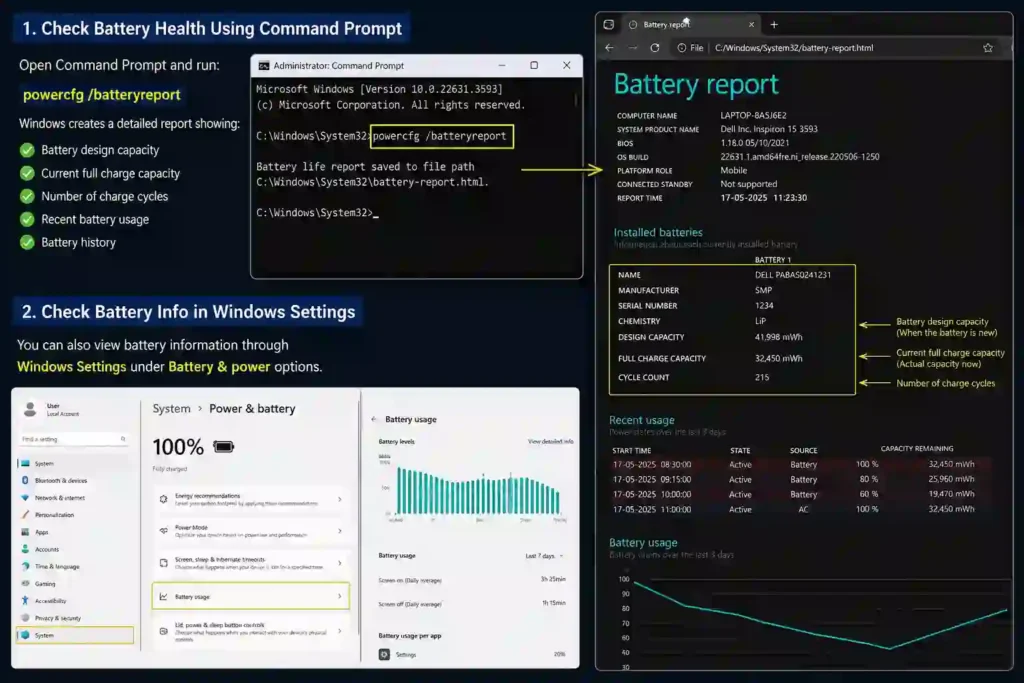
1. Windows
Open Command Prompt and run: powercfg /batteryreport
Windows creates a detailed report showing:
- Battery design capacity
- Current full charge capacity
- Number of charge cycles
- Recent battery usage
- Battery history
This is one of the easiest ways to check battery laptop health and understand how much capacity your battery has lost.
You can also view battery information through Windows Settings under Battery & Power options.
2. macOS
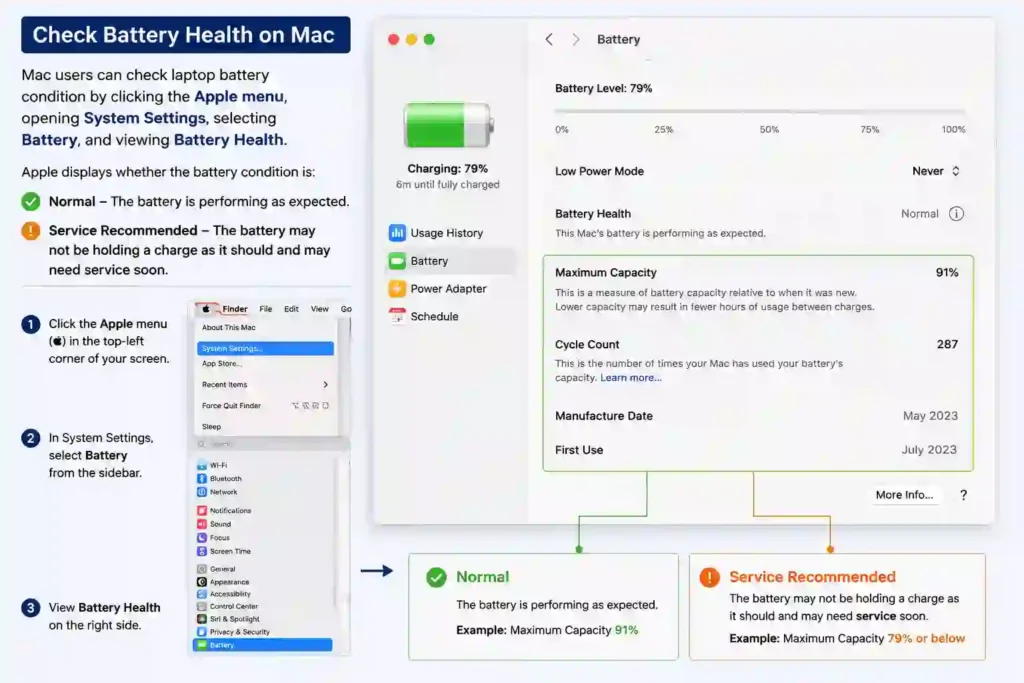
Mac users can check laptop battery condition by clicking the Apple menu, opening System Settings, selecting Battery, and viewing Battery Health.
Apple displays whether the battery condition is:
- Normal
- Service Recommended
You can also see the maximum battery capacity compared to when the battery was new.
3. Manufacturer Software
Many popular laptop brands provide battery management software that offers additional insights into battery condition, charging habits, and power settings.
Examples include:
- Dell SupportAssist
- HP Support Assistant
- Lenovo Vantage
4. Third-Party Battery Tools
There are also trusted third-party applications that let you:
- Test laptop battery
- Monitor battery temperature
- View charge cycles
- Track battery capacity over time
These tools provide a more detailed picture of your battery’s health.
Tips To Extend Your Laptop Battery Life
Although every battery eventually wears out with time, good habits can significantly improve your laptop battery lifetime.
1. Keep screen brightness reasonable
Lowering brightness to a comfortable level ( usually 50% – 70%) can save significant battery power. If your laptop supports auto-brightness, turn it on so the screen adjusts automatically.
2. Enable Battery Saver Mode
Both Windows and macOS have built-in battery saver features. These modes reduce processor speed, limit background activity, and adjust system settings to conserve energy. Activating power saver mode when low on battery gives you enough time to finish your work.
3. Close Unnecessary Programs
Every open program uses processing power and memory, which uses a battery. Close unnecessary browser tabs and background apps before a long work session. This simple step can extend your battery life.
4. Avoid Extreme Temperatures
Use your laptop on hard, flat surfaces that allow proper airflow. Avoid leaving it in direct sunlight, or use it on a soft surface like a bed, which blocks ventilation. It can lead to excessive laptop overheating that hinders overall performance.
5. Practice Healthy Charging Habits
When possible:
- Avoid frequent deep discharges
- Perform timely laptop servicing
- Don’t leave the battery completely empty for long periods
- Try not to keep it at 100% charge continuously
- Try to keep your battery between 20% and 80% as much as possible
- Use the original charger whenever possible when charging a laptop
6. Keep Software Updated
Operating system updates, driver updates, and firmware patches can fix power management issues and help your laptop run more efficiently. Enable automatic updates whenever possible to ensure your device stays optimized.
7. Restart Your Laptop Occasionally
Restarting your laptop clears temporary files, refreshes system processes, and closes background applications that may continue running unnoticed. A quick restart every few days can improve overall performance and certainly reduce unnecessary battery usage.
Signs It’s Time To Replace Your Laptop Battery
Even with proper care, every laptop battery will eventually reach the end of life. Here are the most common signs your laptop battery needs replacement:
1. Battery Doesn’t Last Long
If your laptop only runs for an hour or less after a full charge, the battery capacity has likely declined significantly.
2. Frequent Charging
Needing to recharge several times throughout the day is another sign that the battery is wearing out.
3. Unexpected Shutdowns
If your laptop turns off unexpectedly when the battery icon shows 20% or 30%, the battery can no longer deliver power reliably.
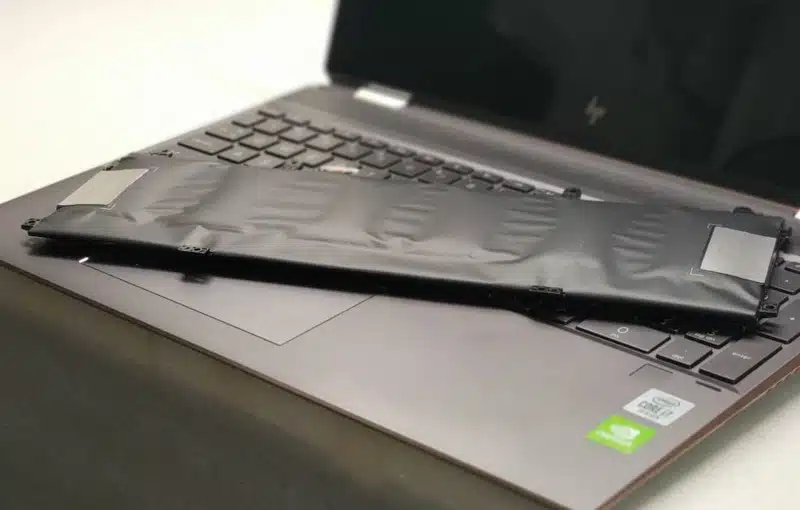
4. Battery Swelling
A swollen battery should be replaced immediately. It can damage internal components and create safety risks.
5. Laptop Battery Is Not Charging
If your laptop battery is not charging despite using a working charger, the battery or charging system may require repair or replacement.
Conclusion
Most laptop batteries provide between 4 and 12 hours of use on a single charge and typically last 3 to 5 years before needing replacement. Daily habits such as managing screen brightness, avoiding excessive heat, keeping software updated, and following healthy charging practices can extend your battery lifetime.
Regularly checking battery health also allows you to detect wear early and decide whether it’s time for a laptop battery replacement. With proper care, you can enjoy reliable battery performance for years while getting the most from your laptop.
If you’re experiencing persistent battery issues, charging problems, or want a professional assessment of your laptop’s overall health with professional laptop repair services, Computer Mechanics offers the most cost-effective repair or replacement solution to keep your device running efficiently.
FAQs
1. How long should a laptop battery last on one charge?
Most modern laptops last between 4 and 12 hours on one charge. The actual duration depends on your laptop model, battery capacity, screen brightness, and the applications you’re using. Light everyday tasks usually provide much longer battery life than gaming or video editing.
2. How many years does a laptop battery last?
A typical laptop battery lasts 3 to 5 years or around 300 to 1,000 charge cycles. As the battery ages, its ability to hold a full charge gradually decreases.
3. Is it OK to leave a laptop plugged in all the time?
Yes. Modern laptops are designed with charging systems that prevent overcharging. However, keeping the battery at 100% continuously may slightly increase long-term wear. If your laptop offers a battery conservation mode that limits charging, enabling it can help maintain battery health.
4. Should I replace my battery or buy a new laptop?
If your laptop is still fast, in good condition, meets your current performance needs and only the battery has deteriorated, replacing the battery is usually the most cost-effective option. If your laptop is several years old and struggles with performance, investing in a new device may provide better long-term value. However, if you’re unsure whether to repair or replace your laptop, a professional diagnostic can help determine the best solution.
