

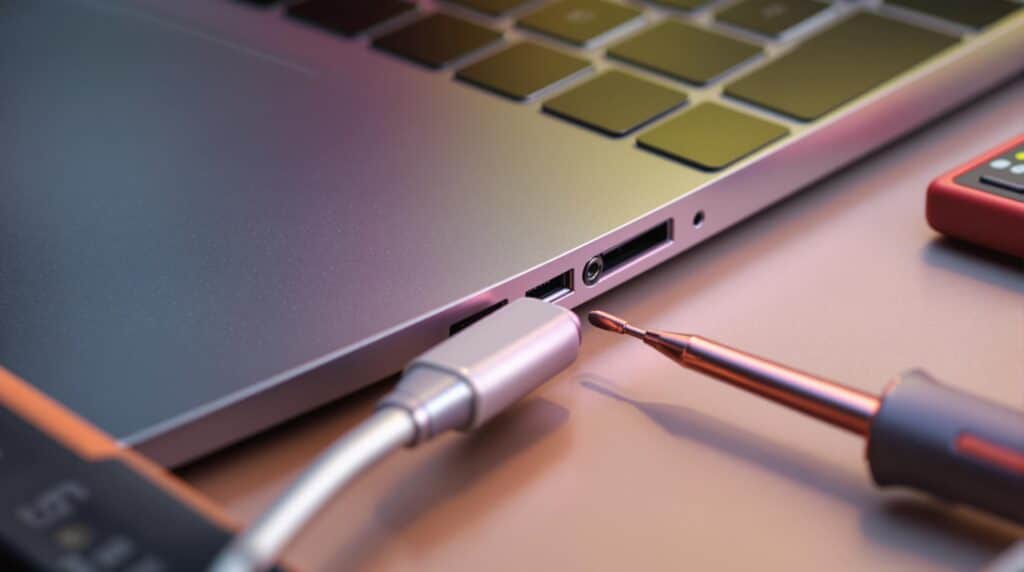
When your laptop stops charging, the battery isn’t always the culprit; the charging port itself may be failing. Loose connections, bent or damaged pins, debris buildup, intermittent power, and worn USB-C or DC-in ports can all disrupt charging. Even minor port damage can worsen over time, making charging unreliable and potentially affecting battery performance.
In this guide, we’ll cover the most common charging-port problems, how to determine whether the port is actually at fault, and the repair or replacement options available.
Laptop Not Charging: How to Fix the Charging Port
Main Charging Port Issues
When laptop charging ports stop working properly, they often show specific signs that point to the problem. Below are the most common issues users experience.
1. Loose Connections
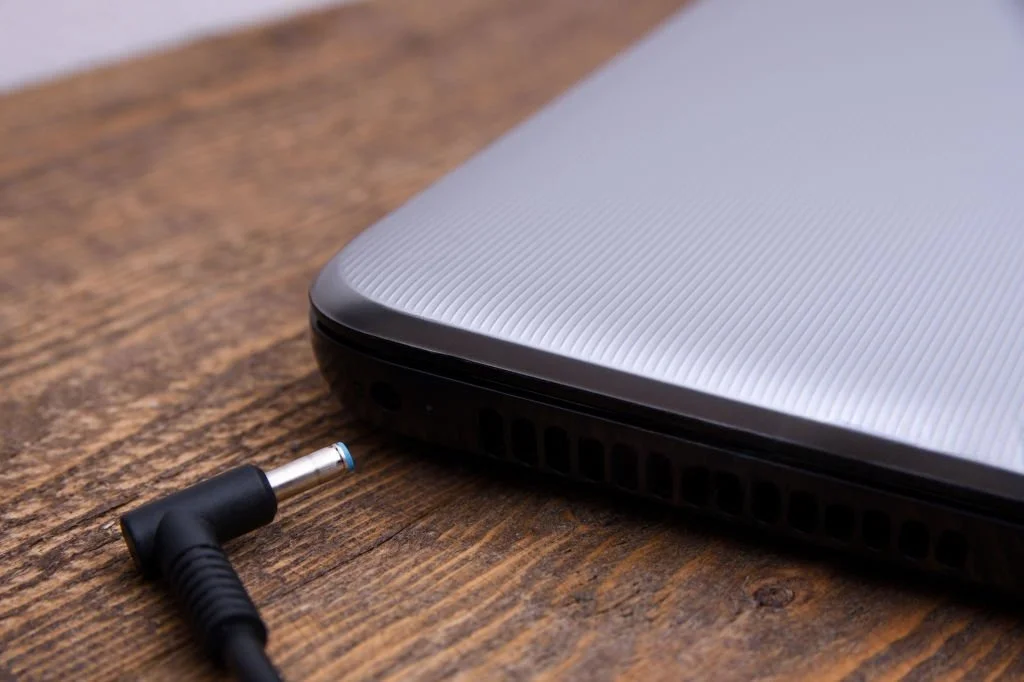
A loose charging port can be incredibly annoying. Here’s how to spot it:
- The charger only works when held at certain angles.
- The connection drops if the laptop is moved even slightly.
- The battery icon flickers, showing intermittent charging.
- You have to wiggle or adjust the connector to keep it charging.
Over time, repeated plugging and unplugging can loosen the internal socket, weakening the soldered connections and leading to unreliable power delivery.
2. Charging Not Detected
Sometimes, even if your charger is in perfect condition, the laptop might not recognize it. Look for these signs:
- The battery icon says “plugged in, not charging.”
- There’s no charging light on the laptop.
- The operating system doesn’t detect an AC power source.
- The battery keeps draining even though it’s plugged in.
This can happen due to debris blocking the connector pins or damage to the detection circuitry, which disrupts communication even if the power pins are functioning. In some cases, users may assume they need a battery replacement when the charging port is actually the source of the problem.
3. Port Overheating
An overheating charging port is a serious issue that needs immediate attention. Signs include:
- The connector feels unusually hot while charging.
- You notice a burning smell near the port.
- There’s discoloration around the charging port.
- The charger adapter gets hotter than normal.
These symptoms often indicate electrical resistance or damage to the port’s power regulation components. If this happens, unplug the adapter right away and have the laptop inspected to avoid further damage.
4. Physical Damage
A damaged charging port can prevent the charger from making a secure connection. Common signs include:
- The port looks bent, cracked, or pushed inward.
- The charging connector no longer fits securely.
- The port moves when the charger is plugged in.
- Charging becomes intermittent after physical damage to the laptop or charging port.
Why Charging Ports Break
Charging ports often fail due to wear and tear, debris build-up, using the wrong chargers, or power surges.
Damage from Regular Use
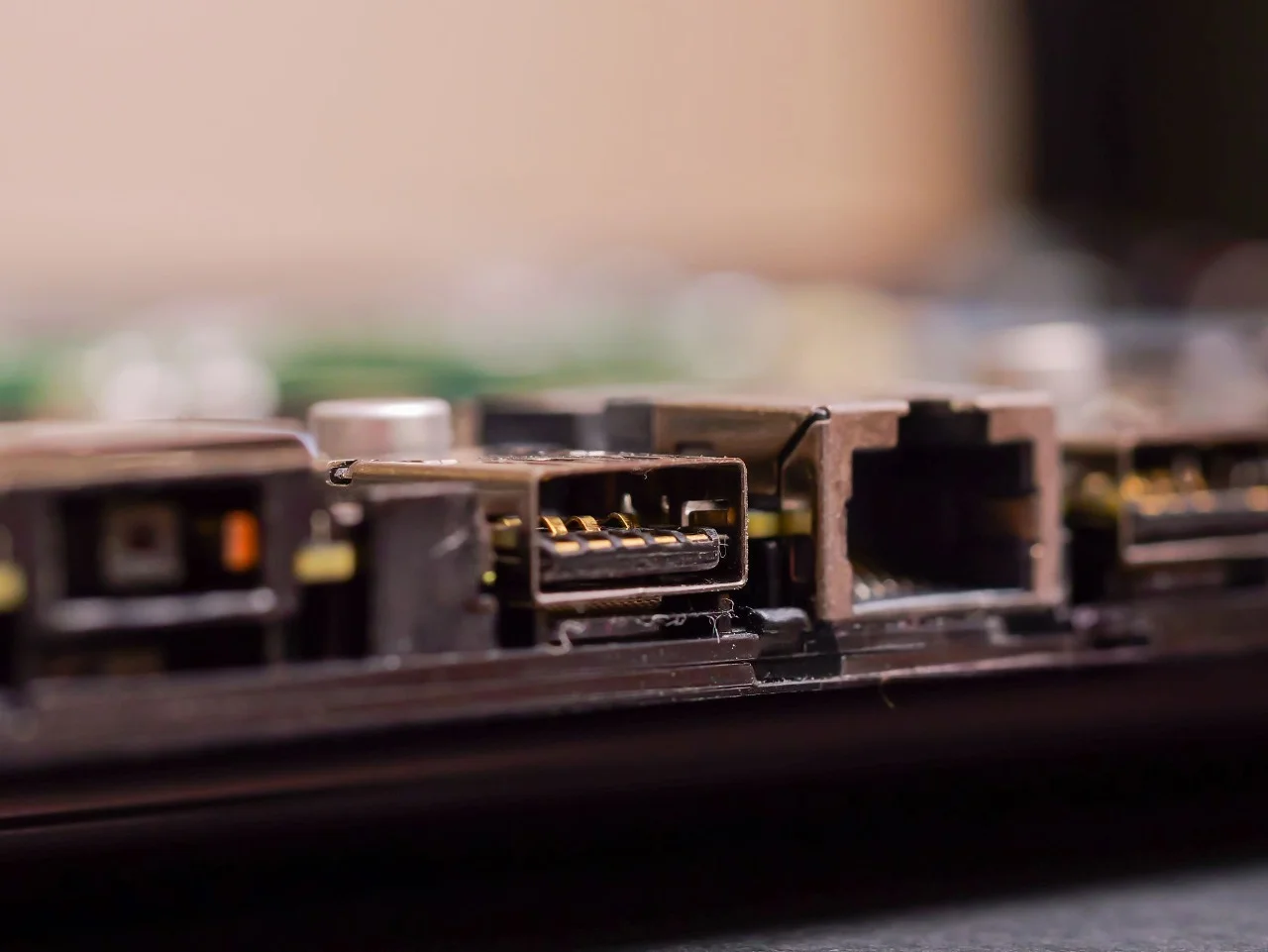
Plugging and unplugging your charger repeatedly can wear out the metal components, loosen soldered connections, and weaken the spring-loaded pins. Over time, this reduces the port’s grip and reliability. To avoid unnecessary strain, support your laptop with one hand while plugging in the charger.
Dust and Dirt Problems
Dust, lint, and other particles can block the port’s contacts, trap moisture that leads to corrosion, and increase electrical resistance, which generates heat. To keep your charging port in good condition, inspect it regularly and use compressed air for gentle cleaning.
Faulty or Damaged Chargers
A damaged or incompatible charger can cause charging problems and, in some situations, put additional stress on the laptop’s charging circuitry.
| Charger Problem | Damage Caused | Risk Level |
|---|---|---|
| Incorrect voltage rating | Burns out port circuitry | High |
| Loose-fitting connector | Causes internal wear | Medium |
| Low-quality cables | Creates connection issues | Medium |
| Incorrect wattage rating | Leads to overall laptop overheating | High |
Damage from Power Surges
Voltage spikes caused by lightning, electrical grid issues, faulty wiring, or overloaded circuits can harm your charging port. Protect your device by using a reliable surge protector.
sbb-itb-078dd21
How to Check for Charging Port Problems
Start by carefully examining the charging port under bright light. Use a magnifying tool to spot any bent or broken pins, as well as dirt or debris. If you notice physical damage or buildup, it’s important to choose a reliable computer repair service to accurately diagnose and repair the issue before it causes further damage. Once you’ve completed the visual inspection, move on to more in-depth technical tests to verify the problem.
Charging Port Repair and Replace Options
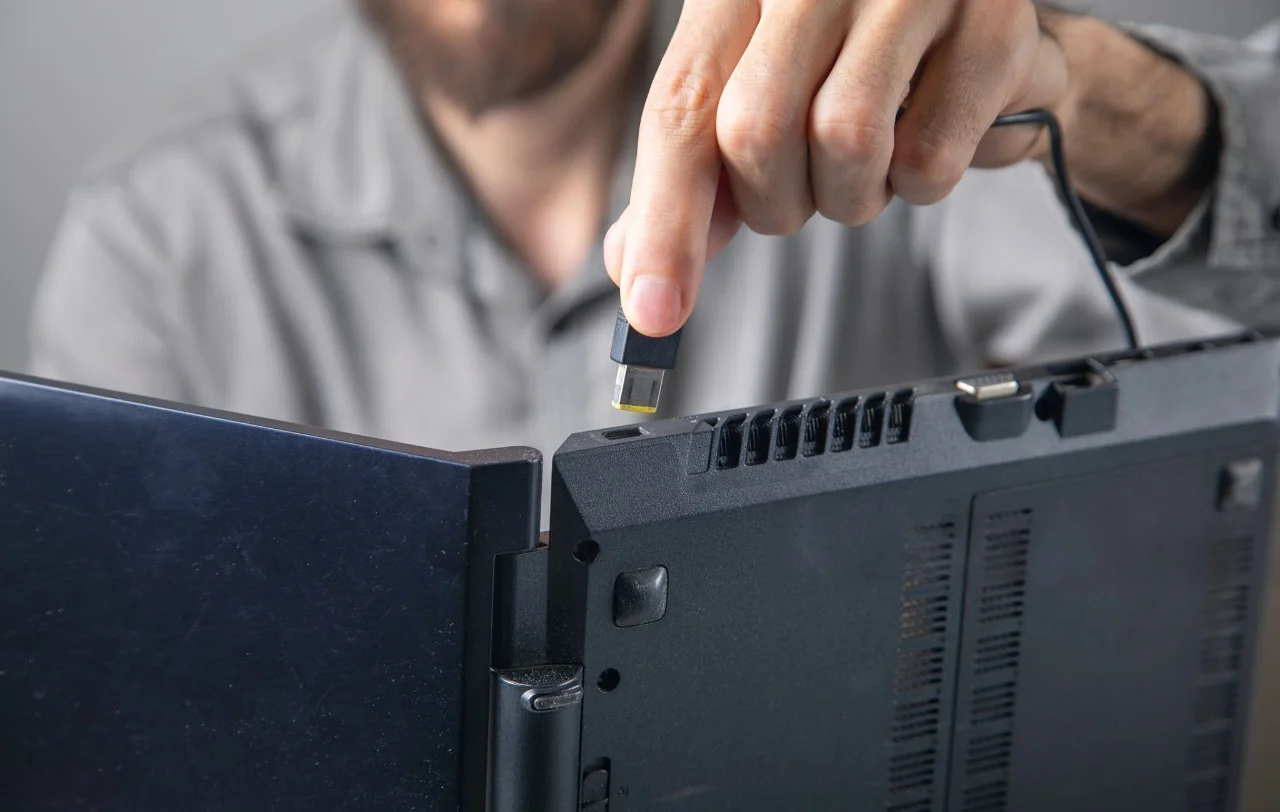
Options for addressing port issues range from basic cleaning to entirely replacing the port, depending on the damage and your expertise.
Basic Port Maintenance
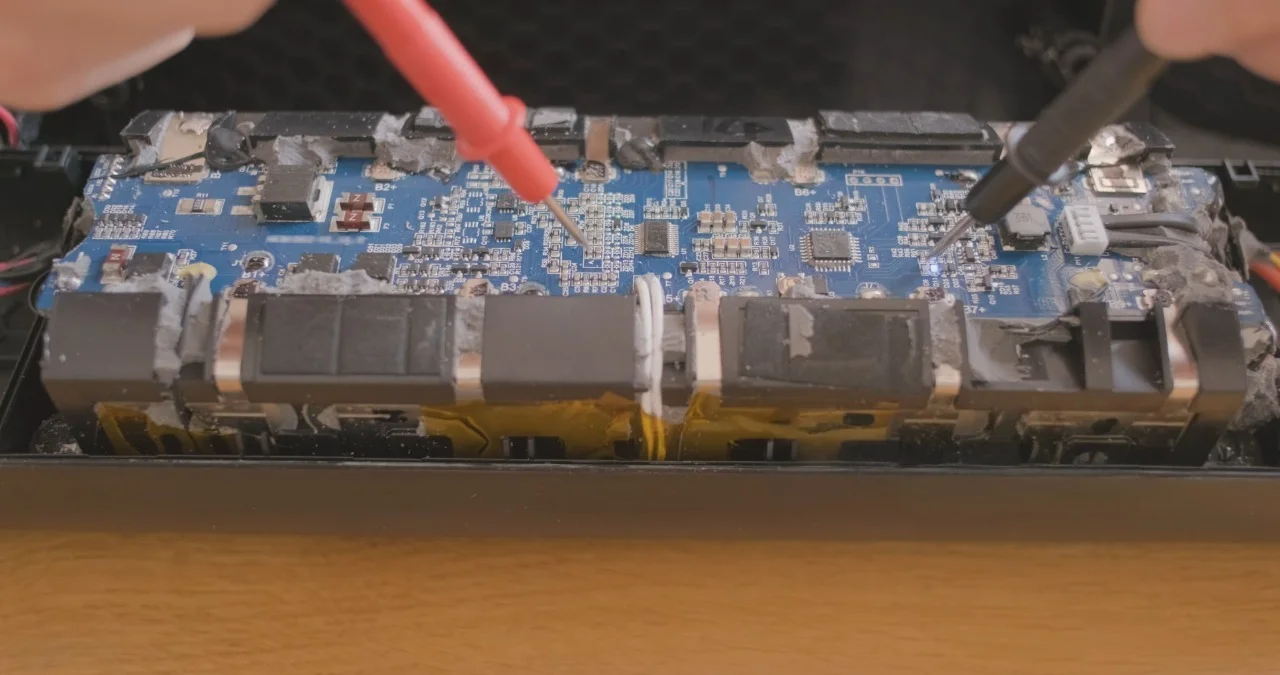
Start by cleaning the port with compressed air to clear out dust and debris. If needed, use a plastic toothpick to gently remove stubborn particles – avoid using metal tools to prevent damage. For loose connections, check if the metal housing inside the port needs a slight adjustment.
Port Replacement Steps
| Step | Action | Key Details |
|---|---|---|
| 1. Preparation | Gather tools and an identical replacement port | Ensure the replacement port matches the original model |
| 2. Backup | Save all your data to external storage | Prevent data loss during repairs |
| 3. Disassembly | Open the laptop case and locate the damaged port | Take photos or notes for reassembly |
| 4. Removal | Desolder and remove the old port | Use proper tools to avoid damaging the board |
| 5. Installation | Solder the new port in place | Align the port correctly for a secure fit |
| 6. Testing | Confirm the port works and charges properly | Test before reassembling the device |
If you’re unsure about tackling this yourself, consider seeking professional assistance to avoid mistakes.
Expert Repair Services
For more complicated repairs, consulting and getting a professional laptop repair service is a smart choice. Computer Mechanics Perth specializes in laptop charging port repairs and typically completes most jobs within 24 hours. Their team uses advanced tools and authentic replacement parts to ensure reliable results.
Data Protection Steps
Safeguard your data before starting any repairs:
- Create a full backup: It is important to create a backup and save all critical files to an external drive or cloud storage before starting any repair work.
- Test the backup: Open and verify the files to ensure they’re intact.
- Remove personal data: Delete sensitive information if sending the device to a repair shop.
If you’re looking for extra help, Computer Mechanics Perth also provides data transfer and backup services to keep your information secure during the repair process.
Reliable Charging Port Repair or Replacement Service in Perth
If your laptop charging port is loose, damaged, overheating, or failing to maintain a stable connection, professional diagnosis can help identify the underlying cause. A charging problem may be caused by the port itself, the charger or cable, the battery, or the laptop’s internal charging circuitry.
At Computer Mechanics Perth, our expert technicians provide laptop charging port repair services in Perth. Depending on the laptop model and the extent of the damage, the repair may involve cleaning the port, repairing the connection, replacing the charging port, or addressing related charging circuitry.
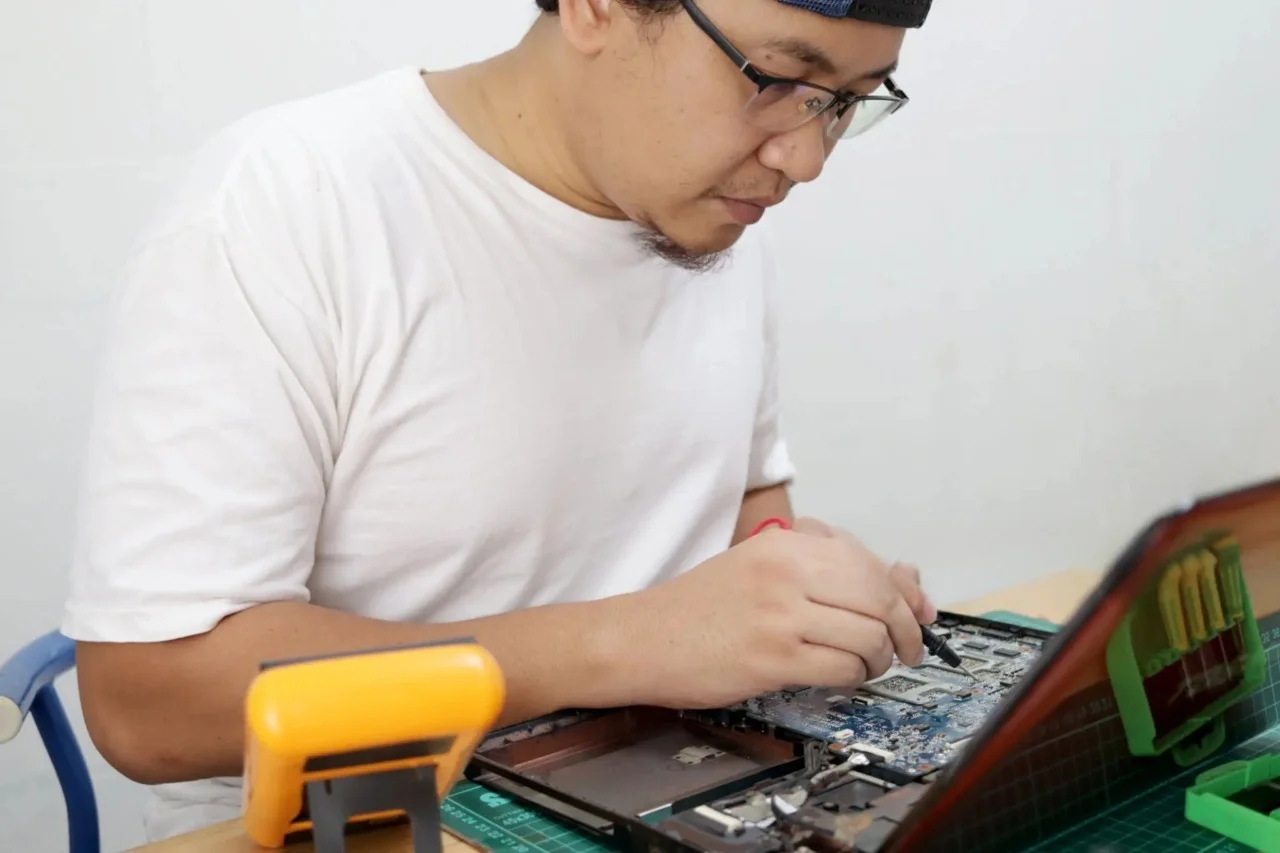
Before replacing the port, our technician inspect and test the laptop to determine the actual source of the charging problem. This helps avoid replacing a working port when the issue is actually caused by the charger, battery, or motherboard. If the charging port is physically damaged or the laptop only charges intermittently, avoid forcing or repeatedly moving the connector, as this can cause further damage. A professional assessment can help determine the appropriate repair and reduce the risk of additional component damage.
If your charging port problem involves internal components, professional laptop repair is often more cost-effective than replacing a laptop damaged by unsuccessful DIY attempts. Carefully evaluate these factors to protect both your device and your data. Understanding when to replace or repair your computer can help you make the right long-term decision.
Conclusion
Taking care of your laptop’s charging port is key to keeping it running smoothly. Simple steps like handling it carefully and cleaning it regularly can help prevent issues. But when problems arise, knowing when to call in a professional is just as important. A mix of regular upkeep and expert repairs can keep your laptop performing well.
Professional repair services come with perks like precise diagnostics, quick service, and secure handling of your data. These benefits ensure your laptop is fixed correctly and help you avoid costly DIY errors.
If you’re in Perth, Computer Mechanics Perth offers dependable charging port repairs. With certified technicians, genuine parts, and fair pricing, they provide solutions designed to last, making it a smart choice for protecting your laptop.
FAQs
1. What are some common signs that indicate a computer may need professional repair or maintenance?
Your computer may need professional repair or maintenance, if you notice the following warning signs, which can worsen over time:
- Programs are taking much longer to respond
- Unexpected restarts or error notifications
- The device is getting hotter or louder than usual
- Accessories like the keyboard, trackpad, or ports are not behaving normally
- Frequent freezing when performing simple tasks
2. How do you know if your laptop is damaged internally?
The following symptoms may indicate faults with internal components such as the cooling system, power circuits, or motherboard failure that require professional diagnosis.
- Sudden shutdowns or failure to boot
- Unusual sounds such as buzzing or clicking
- Your laptop overheats rapidly, even during light activity
- Display issues such as flickering, blank screens, or visual distortion
- Charging problems that aren’t caused by the charger
3. What is the average cost to repair a laptop?
Laptop repair costs can vary. Cost depends on the part needed and the complexity of the issue. Smaller fixes, such as replacing a fan or cleaning out dust, are generally on the cheaper side. If a major component, like such as screen damage, a faulty motherboard, or a damaged power system, needs repair, it tends to cost more. A technician can check your laptop and give you a quote before starting.
4. Why choose Computer Mechanics for laptop repair?
At Computer Mechanics, we have skilled technicians who know how to fix laptops properly. We use good-quality parts and follow reliable repair methods. Your laptop will be taken care of from the moment it arrives until it is fully repaired. Our technicians explain the process clearly and work quickly, making us a trusted choice for both small and major laptop problems in Perth.
5. What should I do before giving my laptop for repair?
Before handing over your laptop for a professional repair, you should take a few simple precautions that will keep your information secure:
- Back up any of your important files
- Sign out of personal accounts or create a temporary password
- Remove accessories you don’t need to bring
- Note down the issues you’ve been experiencing
6. How do I know if my laptop charging port is damaged?
You may have a damaged laptop charging port if your charger only works at certain angles, the laptop doesn’t detect the charger, the battery isn’t charging despite being plugged in, or the charging port becomes unusually hot.
If the problem persists or you notice signs of overheating or physical damage, it’s best to have the charging port inspected and repaired by a professional to prevent further damage.
