

A black screen on a Windows laptop or desktop means the display outputs nothing at all, just a blank, black image, even though the computer’s fans, lights, or drive activity may indicate it’s still running. Unlike BSOD which is a system crash, a black screen is a display or startup failure. If you’re seeing a blue screen with an error code instead, that’s a separate issue with its own fix path.
The fix depends entirely on when the black screen shows up. A black screen before you reach the login page points to a display or boot-level fault. A black screen right after you log in almost always points to Windows Explorer, a driver, or a startup app. This guide walks through both, in order of what to try first, and tells you honestly when it’s time to stop troubleshooting and get a technician to look at the hardware.
Key Takeaway: If your screen is black but the PC sounds like it’s on (fans spinning, keyboard lights active), the hardware is very likely fine; this is a display-path or software problem, not a dead PC.
Common Black Screen Scenarios
The term black screen of death is a scenario where your computer or laptop does not display anything, only a blank screen on the laptop, while the system may still be running in the background. It is different from a normal shutdown or sleep mode as it usually indicates that there are bigger problems with the operating system, graphics card, or laptop display.
Common scenarios include:
| Scenarios | What it usually means |
| Black screen, but fans/lights are on | Display cable, GPU driver, or wrong display output |
| Black screen with a moving cursor | Windows Explorer failed to load |
| Black screen before the login page | BIOS/UEFI, boot device, or hardware fault |
| Black screen right after entering your password | Startup app, corrupted user profile, or driver conflict |
| Black screen after a Windows Update | Incompatible or broken driver installed with the update |
| Black screen only with an external monitor | Cable, port, or resolution mismatch |

Causes of a Blank Screen on a Laptop
Understanding the root cause can save you a lot of time when troubleshooting the laptop black screen issue. Common causes includes:

1. Hardware Issues
- Loose or damaged display cables connecting the laptop display.
- Faulty graphics card, motherboard, or laptop display panel.
- Overheating can trigger a blank screen on laptop.
- Faulty RAM or improperly seated memory modules may prevent the system from starting properly.
- Dead battery or power adapter issues.
2. Software or Operating System Problems
- Windows update failures causing screen problems.
- Corrupt system files in the operating system.
- Issues with Windows Explorer preventing the desktop from loading.
- Conflicts with recently installed programs or drivers.
- Incorrect display output settings or multi-monitor misconfiguration.
3. Power or Startup Issues
- Laptop stuck in sleep or hibernation mode.
- Incorrect startup settings in BIOS or UEFI.
- Power-saving features or battery issues.
4. Driver Issues
- Outdated or corrupt graphics card drivers.
- Driver issues for monitors or external devices causing a black screen laptop.
- Missing updates requiring you to update the driver through Device Manager or Safe Mode.
Quick Black Screen Fixes to Try First (Under 2 Minutes)
- Press Windows + Ctrl + Shift + B. This forces Windows to restart the graphics driver and refresh the display without rebooting the PC.
- Press Windows + P, then press the Down arrow and Enter. This cycles the display output mode, useful if the signal is being sent to a disconnected or inactive second screen.
- Check your brightness key and monitor power. Sounds obvious, but it’s the single most common false alarm.
- Unplug peripherals (external drives, docking stations, USB devices) and restart. A misbehaving peripheral can block the boot process entirely.
- Hold the power button for 10–15 seconds to force a shutdown, wait 30 seconds, then power back on.
If none of these bring the screen back, move to the scenario that matches what you’re seeing.

Fixing a Black Screen Before the Login Screen
If the screen never reaches the Windows sign-in page, the fault sits somewhere between power-on and the login prompt, typically a cable, a boot device setting, or a hardware fault.

Step 1: Check Cables and Display Connections
- Disconnect and reconnect the display cable (HDMI, DisplayPort, USB-C, or VGA) at both ends.
- Try a different cable if you have one, cables wear out at the connector over time, especially on laptops that connect to an external monitor daily.
- Test with a different monitor or TV if one is available. If the second display works, the fault is likely the original monitor or its cable, not the PC.
Step 2: Force Restart and Trigger Automatic Repair
- Hold the power button until the PC shuts off completely.
- Turn it back on, and as soon as the Windows logo appears, hold the power button again to force it off.
- Repeat this two to three times. Windows will detect the failed boots and load the Automatic Repair screen.
- From here, select Advanced options → Troubleshoot → Advanced options, then choose Startup Repair or System Restore to a point before the issue begins.
Step 3: Check the BIOS/UEFI and Boot Order
If Automatic Repair doesn’t appear or doesn’t help, the issue may sit in the firmware layer below Windows.
- Restart the PC and repeatedly press the key shown briefly on startup (commonly F2, Esc, or Delete, depending on the manufacturer) to enter BIOS/UEFI setup.
- Look for Boot Order or Boot Priority and confirm your internal drive (HDD or SSD) is listed first, not a USB drive or network boot option.
- If you suspect a recent firmware change caused the issue, look for Load Defaults or Optimized Defaults and reset to factory settings.
If you can’t even reach the BIOS screen, that’s a stronger signal of a hardware fault, see the section on when to get professional help below.
Fixing a Black Screen After Login
If you can see the Windows logo and enter your password, but the screen goes black immediately after, sometimes with a visible cursor, the fault is almost always in Windows itself, not the hardware.
Step 1: Restart Windows Explorer
Windows Explorer is the process responsible for drawing your desktop, taskbar, and Start menu. If it crashes or fails to launch, you’ll see a black screen with a functioning cursor.
- Press Ctrl + Shift + Esc to open Task Manager directly (this works even with the screen black).
- Go to File → Run new task.
- Type explorer.exe and press Enter.
Your desktop should reappear immediately. If it does, the underlying cause is usually a startup app or driver conflict, continue to Step 2 to prevent it from recurring.
Step 2: Disable Recently Added Startup Apps
- In Task Manager, open the Startup Apps tab (or Startup tab on Windows 10).
- Disable anything installed or updated around the time the black screen started.
- Restart normally and check if the issue is gone.
- If it is, re-enable the apps one at a time, restarting between each, until you find the one that triggers the black screen again.
Step 3: Roll Back or Update the Graphics Driver
- Boot into Safe Mode (Settings → Recovery → Advanced Startup → Restart, then Troubleshoot → Advanced options → Startup Settings → Safe Mode).
- Open Device Manager, expand Display adapters.
- Right-click your graphics card, choose Properties → Driver tab.
- Select Roll Back Driver if it’s available, or Uninstall device and let Windows rollback to a default driver on the next restart.
Step 4: Undo a Recent Windows Update
If the black screen started right after an update:
- Go to Settings → Windows Update → Update history → Uninstall updates.
- Remove the most recent quality update.
- Restart and check the display.
Black Screen with an External Monitor
If your laptop’s built-in screen works fine but goes black only when connected to an external monitor or TV, the cause is almost always one of three things:
- Cable or port fault: Try a different cable, or switch ports (for example, from HDMI to USB-C, if your laptop supports both).
- Output stuck on the wrong display: Press Windows + P and select Duplicate or Extend manually.
Advanced Fixes for Persistent Black Screens
If you’ve worked through the sections above and the screen is still black, these deeper fixes are worth trying before assuming it’s a hardware failure.

Run System File Checker and DISM
Corrupted system files can prevent Windows from rendering the desktop correctly.
- Boot into Safe Mode or Advanced Options and open Command Prompt.
- Run sfc /scannow and let it complete.
- If issues remain, run DISM /Online /Cleanup-Image /RestoreHealth.
- Restart and check the display.
Use System Restore
If you know roughly when the black screen started, restoring to a point before that date can undo whatever software change caused it — without a full reset.
- Enter Automatic Repair (see Step 2 above).
- Select System Restore.
- Choose a restore point dated before the problem began.
When to Look for Professional Help for Your Black Screen Laptop
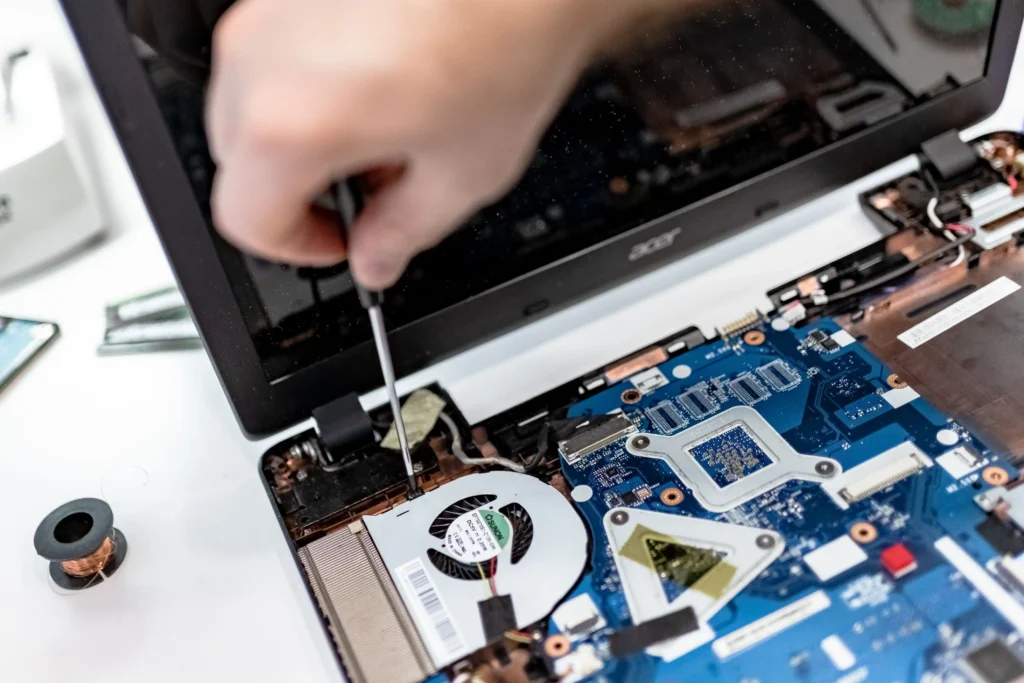
Still experiencing a black screen on your computer after trying every solution/fix listed above? The issue may be related to a hardware fault, such as a damaged display, faulty cable, graphics card problem, RAM issue, or motherboard failure. These problems often require professional diagnostics to identify accurately and repair safely.
At Computer Mechanics Perth, we diagnose and repair black screen issues on laptops and desktops every day, from failed display cables and damaged screens to more complex graphics and motherboard faults. If you’ve worked through the solutions above and your screen remains black, a professional diagnostic can help identify the underlying problem and minimise the risk of further damage or data loss.
If you need a hand getting your laptop working again, our team can assess the issue and recommend the most appropriate repair, including laptop screen repair or replacement where needed.
FAQs
1. Is the Black Screen on a Computer a Common Problem?
Yes. The blank screen or black screen laptop is a common situation that a user experiences. The reasons are software glitches, driver issues, and hardware failures. It can happen often after updates or crashes on both desktops and laptops.
2. What Is the Black Screen of Death?
Black screen of death occurs when a device is powered on, but the screen remains blank. It is different from a normal shutdown, and it is a sign that the operating system, graphics card, or driver issues are the reasons that are preventing Windows from loading.
3. Why Is My Laptop Stuck on a Black Screen with a Cursor?
This happens when Windows starts but cannot load the desktop, often due to a stalled Windows Explorer process or a driver issue. Booting into Safe Mode and checking drivers can usually resolve it.
4. Why Does My Computer Screen Keep Going Black?
Recurring black screens usually point to overheating, a failing graphics card, faulty RAM, or a driver that keeps reinstalling itself through Windows Update. If it happens repeatedly despite software fixes, it’s worth a hardware diagnostic.
5. How to Fix a Black Screen on a Laptop?
- Force a restart by holding the power button.
- Use advanced options to run a new task (explorer.exe) if Windows is responsive in Safe Mode.
- Check and update drivers, and connect an external monitor to rule out laptop display problems.
6. How Do I Restart My Laptop with a Black Screen?
Hold the power button for 10–15 seconds. This is to force a shutdown, then turn it back on. If the screen still stays blank, you should boot into Safe Mode or advanced options.
7. What Should I Press if My Computer Screen Goes Black?
Press Windows + Ctrl + Shift + B to force Windows to reset the graphics driver. This often brings the display back if the issue is driver-related. If the screen remains black, use Advanced Startup Options (accessed by restarting the laptop and pressing F8, F11, or Esc, depending on the model) to continue troubleshooting.
