

Your laptop battery hits zero, you plug in the charger, and nothing. No light on the adapter, no charging icon, no change in the battery percentage. It’s one of the most frustrating laptop problems there is, mostly because “not charging” can mean a dozen different things depending on what’s actually broken.
The good thing is that most laptops that are plugged in but not charging can be fixed without a trip to a repair shop. The cause is usually, a loose connection, the wrong port, an underpowered charger, an ageing battery, a software or driver glitch, or overheating. A smaller number of cases come down to genuine hardware failure, a damaged charging port, a faulty motherboard, or a battery that’s simply worn out and those do need a professional.
This guide walks through the fixes in the order you should actually try them, starting with the things that take 30 seconds and ending with the point where it’s time to call in an expert.
Key Takeaways
- Most charging problems come down to six causes: connection, wrong port, wattage, battery health, software, or overheating.
- Always test the basics first; outlet, cable, and port, before assuming a hardware fault.
- Match or exceed your original charger’s wattage; USB-C chargers that fit don’t always supply enough power.
- Run a battery health check (Windows: powercfg /batteryreport; Mac: Battery Health) before replacing anything.
- Some “not charging” messages are normal behaviour from battery-saving software, not a fault.
- If ten steps of troubleshooting don’t fix it, the cause is likely inside the laptop and needs a professional diagnostic.
Common Causes of a Laptop Not Charging
If your laptop won’t charge, the problem is almost always one of these:
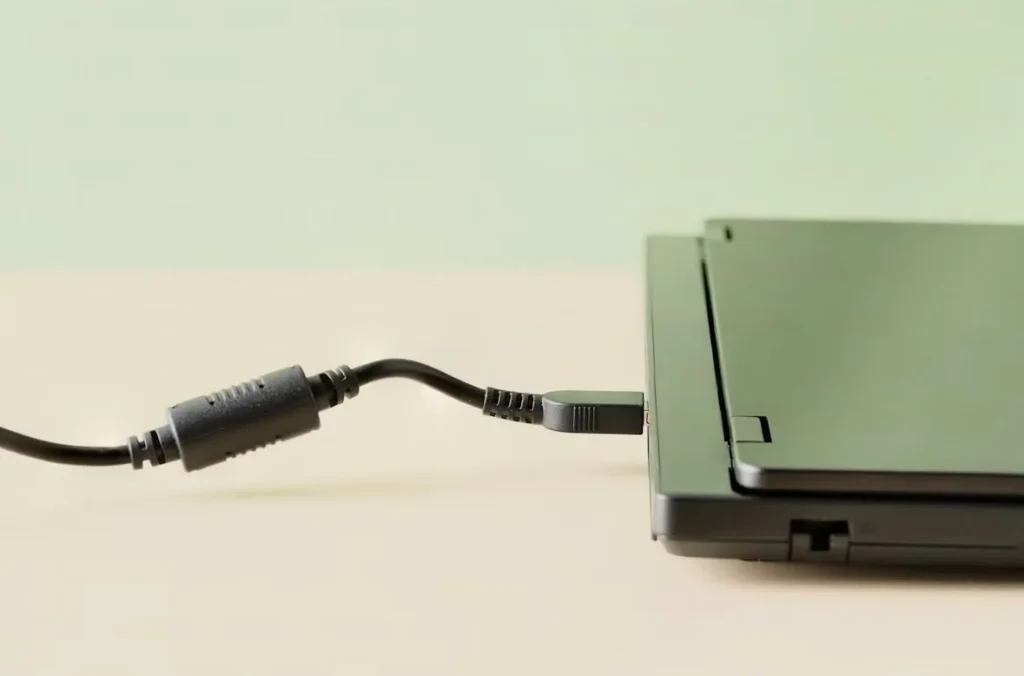
- Loose or faulty connection: The cable, adapter, or charging port isn’t making solid contact.
- Wrong port: Some laptops have a USB-C port that’s data-only and won’t charge the device.
- Underpowered charger: The adapter doesn’t supply enough wattage for your laptop.
- Battery health: The battery is old, damaged, or has reached the end of its usable life.
- Software or driver issue: A corrupted battery driver or misconfigured power setting is blocking charging.
- Overheating: The laptop or battery has gotten too hot and paused charging as a safety measure.
- Hardware failure: A broken charging port, damaged charging circuit, or faulty motherboard.
Steps To Fix a Laptop That Won’t Charge
1. Confirm the charger is actually connected
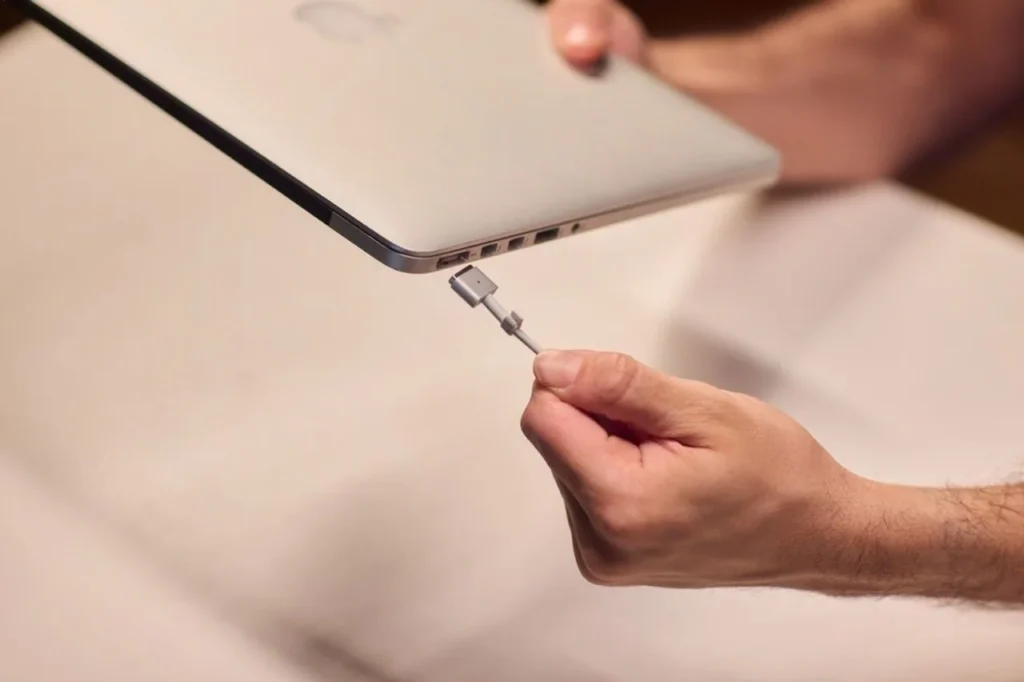
It sounds obvious, but a surprising number of “laptop won’t charge” cases come down to a connection that isn’t as solid as it looks. Check that the adapter is firmly seated in the wall outlet and that the cable is fully inserted into the charging port.
If you’re plugged into a power strip or surge protector, plug directly into a wall outlet instead. This single step rules out a faulty power strip or a tripped circuit, and it’s the fastest way to confirm the problem is actually with the laptop.
2. Inspect the Cable and Adapter
With the connection confirmed, look closely at the cable itself. Run your fingers along its length feeling for kinks, and check both ends for fraying or loose pins. A cable that’s been bent sharply, chewed by a pet, or caught in furniture can develop an internal break that may not be visible from the outside.
Also check the power brick (the box in the middle of the cord). If it feels warped, looks discoloured, or smells faintly of burnt plastic, stop using it immediately. A damaged adapter should be replaced, ideally with one from the laptop manufacturer.
Finally, look inside the laptop’s charging port itself. Dust and lint can build up over time and prevent a clean connection. A can of compressed air or a soft, dry brush can clear this out safely, but avoid poking metal objects into the port, as this can bend the internal contacts.
3. Check You’re Using the Right Port
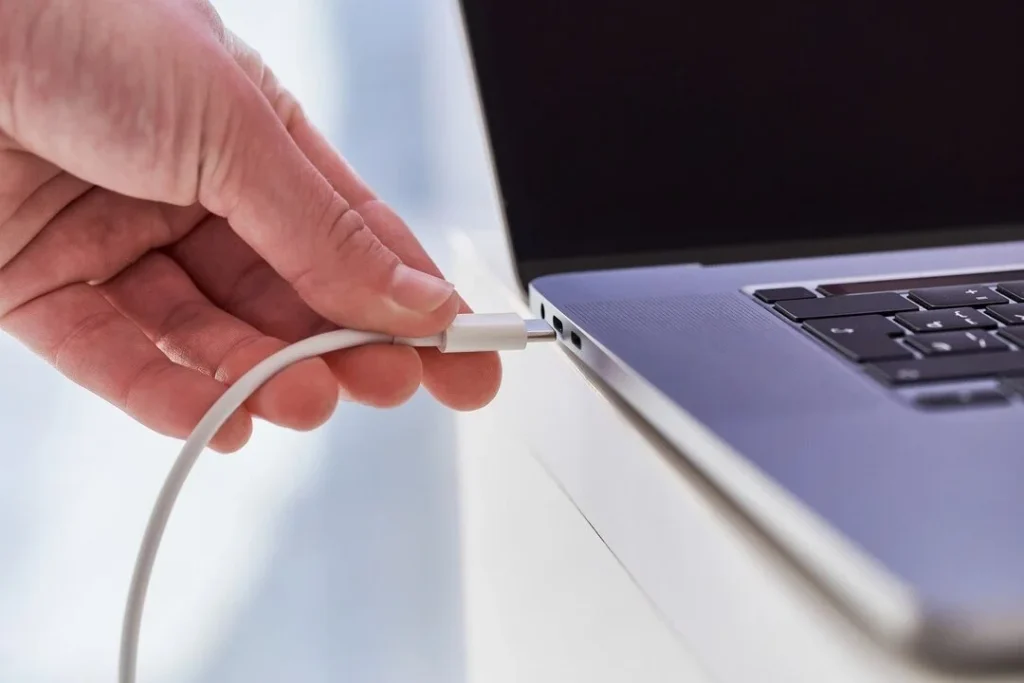
If your laptop charges over USB-C, this step matters more than most people realise. Some laptops with two USB-C ports designate only one of them for charging, the other is data-only and will never charge the battery, no matter how good your cable and adapter are.
Look for a small charging icon (often a battery or lightning bolt symbol) printed next to the correct port. If you’re not sure, check your laptop’s user manual or the manufacturer’s support page for your exact model.
4. Check Your Charger’s Wattage
A charger can physically plug into your laptop and still not be strong enough to charge it. This is especially common with USB-C charging, where almost any USB Power Delivery (USB-PD) charger will fit, but not all of them supply enough power.
To check, look at the input/output label on your original charger (or the underside of your laptop). You’ll usually see something like “20V ⎓ 3.25A.” Multiply voltage by amperage to get the wattage, 65W in this example. Your replacement charger should match or exceed this figure. A lower-wattage charger may keep the battery from draining further while you use the laptop, but it often can’t charge it at all under load, or will charge it very slowly.
If you need a third-party charger, look for one that’s USB-IF certified, which confirms it meets official USB Power Delivery standards. This matters even more in Australia, where cords and adapters left in direct sun or extreme heat can degrade faster, a cracked or brittle cable is more likely to develop internal faults.
5. Test With the Battery Removed
If your laptop has a removable battery, this test is one of the most useful ways to isolate the fault. Shut the laptop down, remove the battery, and hold the power button for about 15 seconds to clear any residual charge. Then, with the battery still out, plug the laptop into power and try turning it on.
- If it powers on: Your adapter and charging circuit are working, and the problem is very likely the battery.
- If it doesn’t power on: The issue is with the adapter, the charging port, or something deeper inside the laptop.
Most modern ultraportables and MacBooks have batteries built into the chassis rather than a removable pack. If yours doesn’t have an accessible battery compartment, skip to other steps or consider a professional diagnostic instead.
6. Check Your Battery Health
Batteries degrade with age and use, and a laptop that’s several years old may simply need a new one. Fortunately, both Windows and macOS can tell you exactly how healthy your battery is.
On Windows, open Command Prompt and run:
- powercfg /batteryreport
This generates an HTML file showing your battery’s design capacity versus its current full-charge capacity, along with its usage history. If the current capacity has dropped well below the design capacity, that’s a strong sign the battery needs replacing.
On Mac, go to System Settings > Battery > Battery Health. If it shows “Service Recommended,” the battery has degraded to the point where Apple suggests replacing it. You can also check your cycle count via the Apple menu > System Information > Hardware > Power, and compare it against your model’s rated cycle limit.
7. Rule Out Overheating
Batteries and heat don’t mix. If a laptop runs hot, its thermal sensors may cause it to pause charging entirely as a protective measure, sometimes causing the system to report the battery as full or missing when it isn’t.
This is more common on older laptops with less efficient cooling, and on any laptop used on a soft surface like a bed or couch, which blocks the air vents. Turn the laptop off, let it cool down, and check that the vents are clear of dust and obstructions. If your laptop overheats often, a lightweight monitoring tool can help you keep an eye on internal temperatures so you can catch the problem before it recurs.
8. Update or Reinstall Battery Drivers
A corrupted or outdated driver can prevent Windows from communicating properly with the battery, even when the hardware itself is fine.
On Windows:
- Right-click the Start menu and open Device Manager
- Expand Batteries
- Right-click each entry (usually including Microsoft ACPI-Compliant Control Method Battery) and select Update driver
- Restart the laptop and check whether charging resumes
If updating doesn’t help, try uninstalling the ACPI-Compliant Control Method Battery driver entirely and restarting, Windows will automatically reinstall it from scratch.
On Mac, the equivalent fix is resetting the System Management Controller (SMC), which governs power management. The exact steps depend on your Mac’s chip, Apple Silicon Macs only need a restart, while Intel Macs require a specific key-and-power-button combination detailed on Apple’s support site.
9. Check Power Management Settings
Sometimes the laptop is charging correctly, but a power setting makes it look like it isn’t. Some manufacturer software, e.g. Asus’s Battery Health Charging mode, deliberately caps charging at around 80–90% to extend long-term battery lifespan, which can look identical to a fault if you don’t know it’s there.
It’s also normal on several brands for the battery indicator to show “plugged in, not charging” once the battery is above roughly 95%, purely to reduce unnecessary charge cycles. Check your manufacturer’s companion app (MyAsus, Lenovo Vantage, Dell Power Manager, HP Support Assistant) before assuming there’s a fault.
10. Know When It’s a Hardware Problem
If you’ve worked through every step above and the laptop still won’t charge, the cause is likely inside the machine, a damaged charging port, a faulty charging circuit on the motherboard, or a battery sensor that’s failed. These aren’t DIY fixes for most people, and attempting them without experience risks further damage.
At this point, a repair technician can run proper diagnostics to isolate the exact fault and provide needed repair or hardware upgrades, rather than replacing parts by trial and error.
Brand-Specific Charging Settings Worth Checking
Charging behaviour isn’t identical across every laptop brand. A few things worth checking before you assume the worst:
- Asus: The MyAsus app’s Battery Health Charging feature can intentionally limit charging to preserve battery lifespan. Check under Customization > Power & Performance.
- Lenovo: Lenovo Vantage includes similar charge-threshold controls, and a “power saving mode” setting can sometimes interfere with charging speed.
- Dell: SupportAssist can run a full battery diagnostic and check for outdated drivers in one pass.
- HP: HP Support Assistant provides a similar built-in diagnostic, and HP’s own guidance notes that many charging issues trace back to a bumped or loose charging port.
When to See a Professional
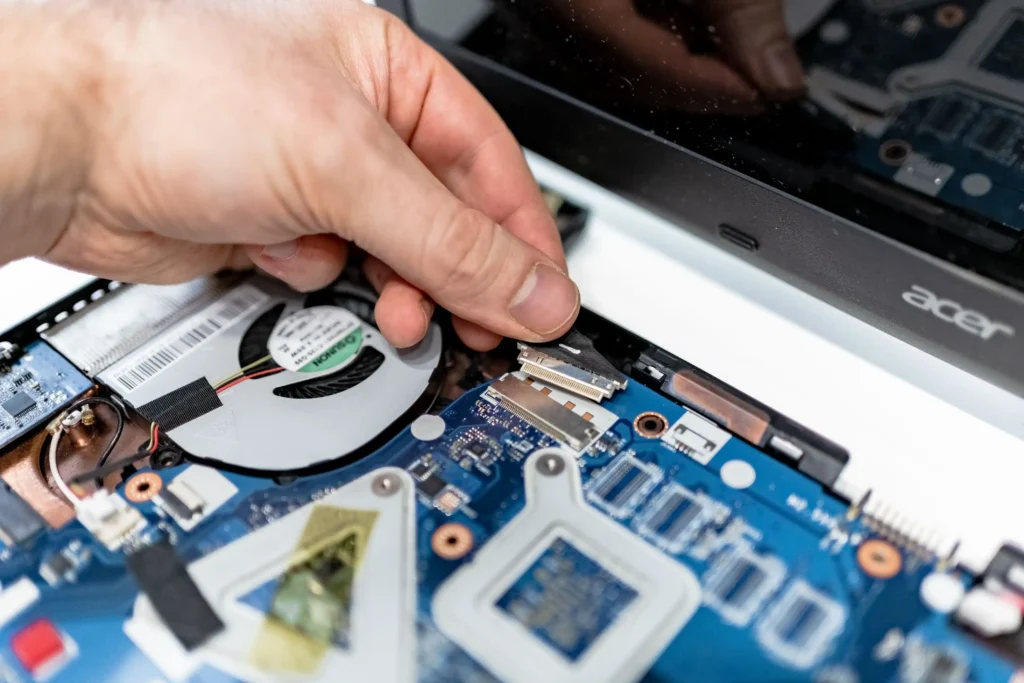
If you’ve worked through the checks above and your laptop still won’t charge, the problem is more likely to be hardware-related. Common possibilities include a damaged charging port, failed battery, faulty charging circuit, battery sensor problem, or another internal power fault.
There are a few signs that mean you should stop troubleshooting and get the laptop checked rather than continuing to test different chargers or open the machine yourself:
- The charging port is loose, damaged, or only works when the cable is held at a certain angle.
- The laptop won’t power on even with a known-good, compatible charger.
- The charger gets unusually hot, makes a buzzing sound, or has visible damage.
- The laptop or battery appears swollen, causing the bottom case, keyboard, or trackpad to lift.
- The battery percentage drops rapidly or the laptop shuts down unexpectedly while plugged in.
- You’ve tried a compatible charger, different outlet, the correct charging port, and the software checks without any improvement.
At Computer Mechanics Perth, our expert technicians regularly deal with laptop charging faults like damaged charging ports, worn-out batteries, dodgy adapters, and the occasional motherboard issue, and can usually tell you what’s actually wrong and what it’ll cost before any repair work begins. If the fixes above haven’t sorted it out, it’s worth getting it looked at rather than guessing further, and we’re happy to take a look and let you know what’s going on.
FAQs
Why does my laptop say “plugged in, not charging”?
This can mean several things: a battery-saving feature is deliberately capping the charge (common once the battery passes roughly 95%), a driver issue is preventing Windows from reading the battery correctly, or there’s a genuine fault with the adapter, port, or battery itself.
Is it safe to use a third-party laptop charger?
Yes, as long as it matches your original charger’s voltage and meets or exceeds its wattage, and is USB-IF certified if it’s USB-C. Cheap, uncertified chargers can charge slowly, damage the battery over time, or in rare cases pose a fire risk.
Can I replace a laptop battery myself?
On laptops with a removable battery, yes, it’s usually a straightforward swap. On laptops with the battery built into the chassis, replacement is more involved and is best left to a professional to avoid damaging other components.
How do I check my laptop’s battery health?
On Windows, run powercfg /batteryreport in Command Prompt to generate a full report. On Mac, go to System Settings > Battery > Battery Health.
Why does my laptop charge so slowly?
Slow charging is usually caused by an underpowered charger, heavy CPU/GPU usage while charging, or a battery that’s aged and can no longer accept a full charge rate.
