

Laptop batteries aren’t designed to last for dozens of hours, let alone days, but they’re also not meant to deplete in an hour or two.
If you find yourself needing to put your laptop on charge every hour, you’re not alone. This is a common issue we all face from time to time. It can be caused by factors like excessive background applications, high-performance power settings, high screen brightness, or unnecessary peripherals connected, to name a few.
In this guide, we’ve discussed the potential reasons as to why your laptop battery life is draining so quickly and provided you with some fixes to improve your laptop battery performance.
Common Reasons Your Battery Drains Quickly

While it may be easier to check laptop battery health, determining the root cause of the quick drainage of your battery may take a little digging into.
Most modern batteries can last around 4 to 10 hours on a full charge depending on how the device is used. However, if you’ve noticed that your battery depletes considerably faster than it once did, here are some common causes:
1. High Screen Brightness
One of the biggest power consumers for laptops comes from the display. If you run your laptop display at full brightness, you may lose hours of battery life. Backlit keyboards, high refresh rate and vivid color settings contribute to the load.
2. High-Performance Components
Most modern laptops have a number of power-intensive components that draw significantly more power than standard components. Since they use more power, they will deplete your power supply faster.
These modern laptops almost always have performance adjustment settings. If you always run the high-performance settings, it will drain your battery significantly faster.
3. Background Applications and Processes
Unless you manually turn them off, there will be several applications and processes running in the background even when you’re not using them. These background processes consume power and can also be one of the reasons your laptop is running slow.
4. Connected Peripherals
USB devices that are connected to your laptop’s USB ports are continuously drawing power from them. A mouse, keyboard, hard drive, cooling pad, and even dongles connected to your laptop all utilize power. Additionally, the Bluetooth and Wi-Fi devices connected to your laptop also consume energy just to maintain their connections, even when they’re not in use.
5. Multi-Tasking and Resource Usage
Simultaneously using multiple resource-intensive applications and multitasking will result in faster depletion of your laptop’s battery and may cause performance issues such as frequent freezing. If you have many tabs open in the browser or are running resource-heavy applications, then your laptop’s battery will not last long.
6. Modern Standby
Modern Standby is a feature used by many newer Windows laptops that allows the computer to remain partially active while appearing to be asleep. During this time, Windows may continue syncing email, downloading updates, receiving notifications, and maintaining network connections. As a result, losing a small percentage of battery overnight is normal.
If you experience excessive battery drain while the laptop is sleeping, using Hibernate instead of Sleep may significantly reduce power consumption.
Other Software-Related Reasons Behind Battery Drain
- Modern Standby Mode
- Too Many Startup Programs
- Unoptimized Power Settings
- Outdated Drivers, BIOS or Operating System
Other Hardware-Related Reasons Behind Battery Drain
- Overheating and Thermal Issues
- Incompatible or Faulty Charging Adapters
- Failure of Internal Power Components
- Damaged or Degraded Battery
- Fake or Low-Quality Batteries
Is It Your Battery or Your Settings?
| Symptom | Most Likely Cause |
| Battery drains within 1–2 hours on every charge | Battery degradation |
| Battery drains mainly while gaming or editing videos | High workload |
| Battery drains overnight during sleep | Modern Standby or background activity |
| Laptop becomes unusually hot | Dust buildup, poor ventilation, or heavy processing |
| Battery percentage drops suddenly | Battery wear or calibration issue |
| Laptop only works while plugged in | Battery failure |
How to Diagnose What’s Draining Your Laptop Battery
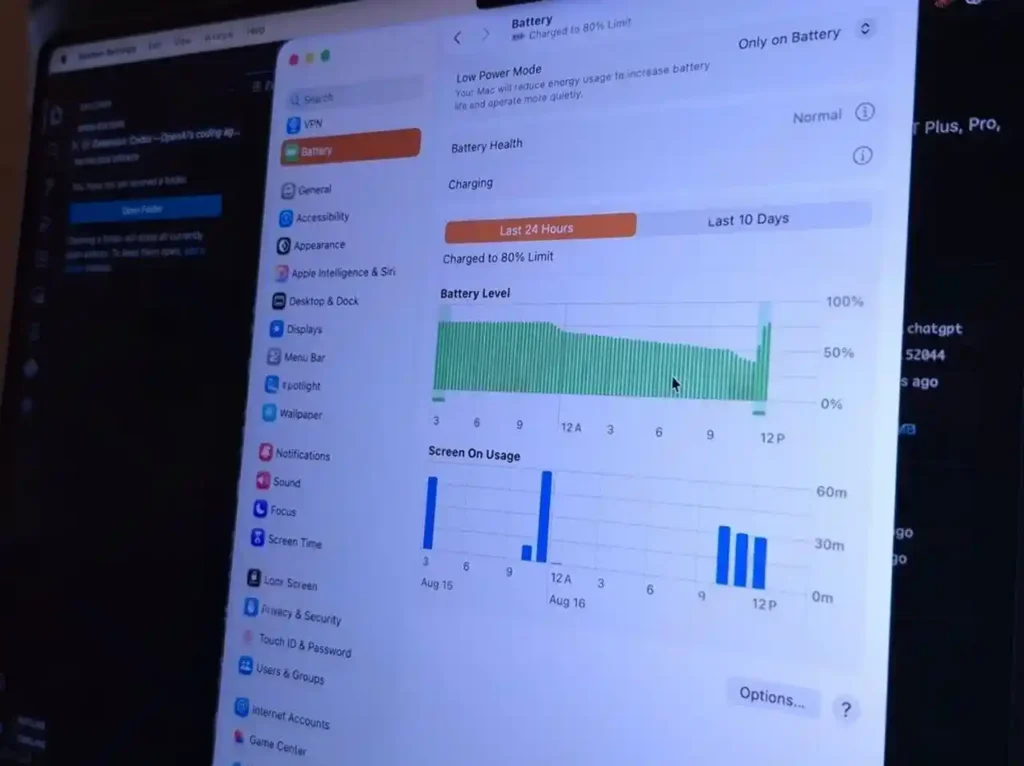
Before repairing or replacing the battery, it’s important to identify exactly what’s consuming the most power. Windows and macOS both include built-in tools that help pinpoint battery usage and determine whether the issue is caused by software, settings, or battery wear.
For Windows
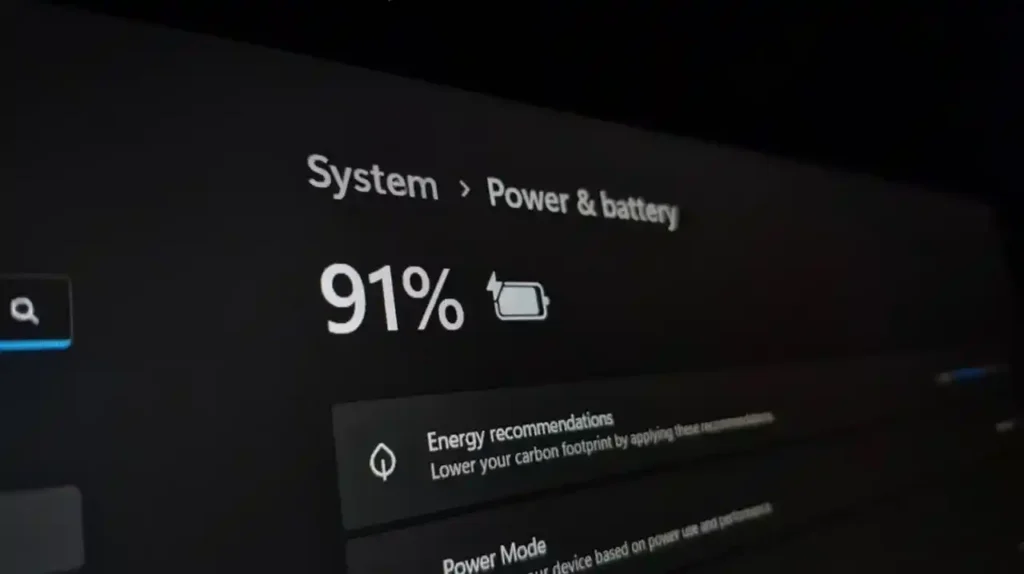
- Open Settings > System > Power & Battery > Battery Usage to view battery consumption.
- Close, restrict background activity, or uninstall apps with unusually high battery usage.
- Press Ctrl + Shift + Esc to open Task Manager and identify apps consuming excessive CPU, memory, or disk resources.
To Check Battery Health on Windows:
- Open Command Prompt as Administrator.
- Run: powercfg /batteryreport
- Open the generated battery report to review battery capacity, usage history, and health.
For macOS
- Open Activity Monitor and select the Energy tab to identify apps consuming the most power.
- Go to System Information > Power to check your battery’s condition and cycle count.
How to Improve Battery Life
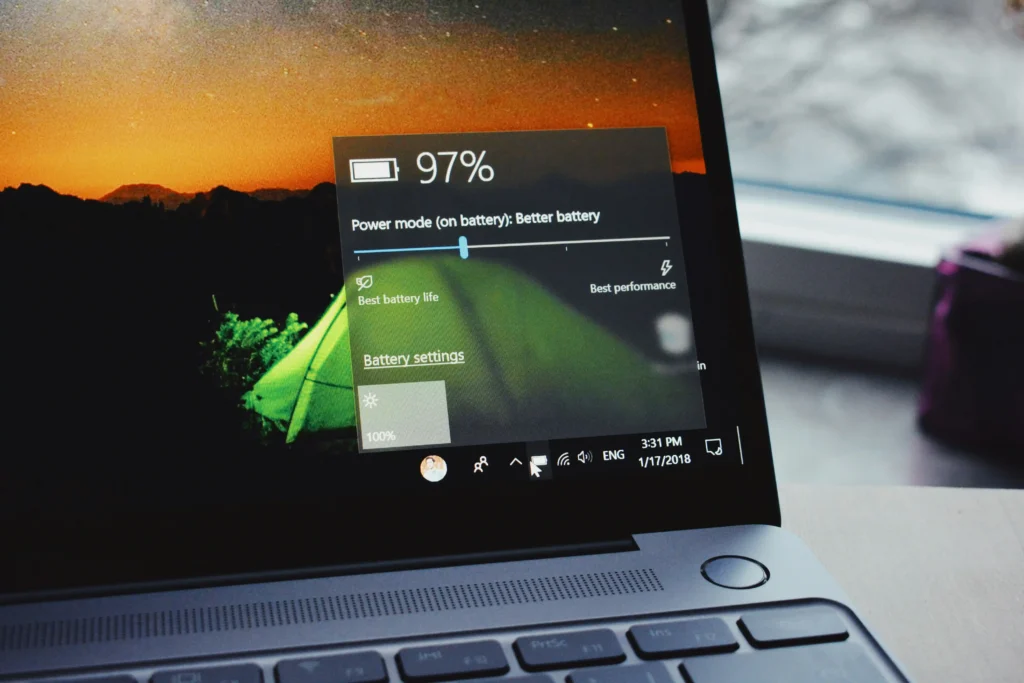
Just because your battery life is depleting faster than normal doesn’t automatically mean you need a replacement. Here are a few adjustments you can make to improve your laptop’s battery life:
- Lower your screen brightness.
- Optimize your performance settings.
- Lower or turn off backlit keyboards.
- Close unnecessary background apps and browser tabs.
- Unplug any accessories that aren’t in use.
- Turn off Bluetooth or Wi-Fi when they’re not being used.
- Switch to battery-saver mode for efficient power usage.
- Disable startup apps that you do not require to launch when you boot.
- Avoid using your laptop on surfaces that restrict airflow.
Understanding Battery Health
Laptop batteries naturally lose capacity over time, even with normal use. Most modern laptops use lithium-ion (Li-ion) batteries, which gradually hold less charge as they age. This process is normal and cannot be completely prevented, but good charging habits and regular maintenance can help extend battery life.
A healthy battery should still provide several hours of runtime, depending on your laptop model and workload. However, if your battery drains unusually fast, the charge percentage drops suddenly, or the laptop only works when connected to a charger, it may be a sign that the battery has reached the end of its useful life.
How Long Should a Laptop Battery Last?
The average laptop battery typically lasts anywhere from 2 years to 5 years, or 300 to 1000 charges before needing to be replaced. After about 500 cycles, most batteries still retain approximately 80% of their original capacity.
As for the run time on a single charge, it ranges from 4 to 10 hours depending on your laptop model, usage patterns and power settings. As part of regular care, following a simple laptop maintenance checklist like checking battery cycles, cleaning vents, updating drivers, and reviewing power settings can help you maintain your battery’s health and overall laptop performance.
When to Consider Replacing Your Laptop Battery
Laptop batteries naturally degrade over time, even when taken care of properly. You will eventually need to replace them, but the timeframe of the replacement depends on laptop usage and how well the battery is maintained.
A laptop battery may need to be replaced if it continues to drain fast despite trying the fixes listed above. Some common signs that indicate a laptop battery is ready for replacement include rapid battery percentage drops, unexpected shutdown of the laptop, taking much longer to charge than usual or the device working only when plugged into a charger.
If you’re unsure whether your battery needs replacing or not, it’s worth checking for the warning signs in more detail.
Troubleshooting Checklist

If your laptop battery is draining quickly, work through these steps in order:
- Check which apps are using the most battery.
- Reduce screen brightness and disable keyboard backlighting.
- Enable Battery Saver or Balanced power mode.
- Close unnecessary browser tabs and background applications.
- Disconnect unused USB devices and disable Bluetooth if not required.
- Update Windows, drivers, and BIOS.
- Generate a Battery Report to check battery health.
- If the battery capacity is significantly reduced or the laptop only works while plugged in, consider replacing the battery.
Working through these steps methodically can help identify whether the issue is caused by software, settings, or a battery nearing the end of its lifespan.
When to Seek Professional Help For Laptop Battery Issues
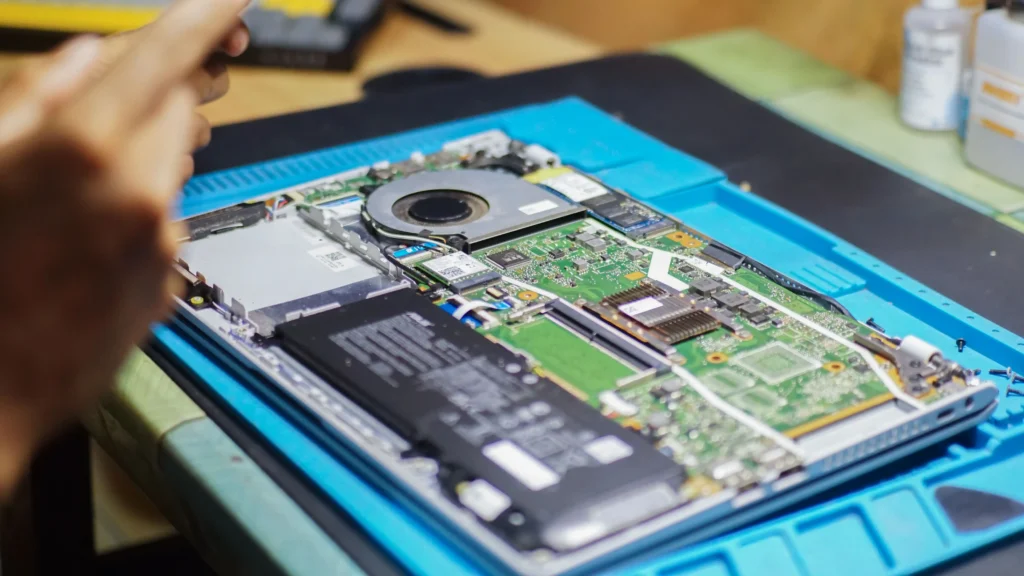
If you’ve tried all of the possible fixes to improve your laptop battery life, but it continues to drain quickly, it may be a sign of a bigger underlying hardware issue. Problems such as failing battery cells, charging port malfunctioning, overheating components or internal power circuit issues often require professional inspection for accurate diagnosis.
In such situations, it’s best to have your laptop checked by experienced technicians, so they can run proper diagnostics and identify the exact cause of the problem. At Computer Mechanics, we provide professional laptop repair services to help restore your device’s performance.
Frequently Asked Questions
1. Why is my laptop battery draining so fast all of a sudden?
Unexpected increases in battery drainage are usually caused by background applications, high screen brightness, running resource-intensive programs, startup apps, or multitasking. Hardware issues such as overheating or a degrading battery can also cause unexpected battery loss.
2. Can overheating cause laptop battery drainage?
Yes, excessive heat in the components forces the laptop to work harder and increases the power usage and degradation of the battery.
3. How to check what is draining my laptop battery?
Windows laptops allow you to check the battery usage by applications by going into Settings, System, Power and Battery, and then Battery Usage. As for laptops running on macOS, you can view battery usage through the Activity Monitor and then Energy tab.
4. How do I make my laptop battery’s health last longer?
There are some adjustments you can make to improve your battery health and make it last longer. These adjustments include:
- Reduce screen brightness
- Turn off backlit keyboards
- Close unnecessary background apps
- Unplug accessories that aren’t in use
- Switch to battery-saver mode
5. Can overcharging cause damage to my laptop?
Most modern laptops have built-in safety features to stop overcharging, but keeping it at 100% constantly generates heat, which causes degradation of battery capacity over time.
6. How to check laptop battery health?
For Windows, type powercfg/batteryreport in Command Prompt. For Mac, go to Power in System Information to see battery cycle count and condition.
7. Why does my laptop battery drain overnight?
Many modern Windows laptops use Modern Standby, which allows certain background activities, such as email syncing, software updates, and notifications, to continue while the laptop is in sleep mode. This means some battery drain is normal. If you notice excessive overnight battery loss, using Hibernate instead of Sleep may help reduce power consumption.
8. Is it normal for gaming to drain my laptop battery quickly?
Yes. Gaming places heavy demands on the processor and graphics card, both of which consume significantly more power than everyday tasks. It’s common for battery life during gaming to be much shorter than the normal runtime.
