

Few things are more frustrating than turning on your laptop and waiting forever for it to load. Whether you’re working from home, studying, gaming, or simply browsing the web, a slow laptop can make even simple tasks feel painful.
If you’ve been wondering “why is my laptop running so slow”, you’re not alone. Laptop performance naturally changes over time, but there is usually a specific reason behind the slowdown.
Often, the causes are common and easily fixable. Most issues can be fixed without buying a brand-new device. In this guide, we’ll explore the most common causes of a slow laptop and show you exactly how to fix them.
Common Signs Your Laptop Is Struggling
If you’re noticing any of these symptoms, it’s an indication that your laptop needs some attention.
- Slow Boot-Up Times: Your laptop takes an eternity to start up.
- Applications Lagging: Programs take a long time to open or respond.
- Unresponsive System: Your laptop freezes frequently or becomes unresponsive.
- Web Browsing Delays: Websites load slowly, especially with multiple tabs open.
- Fan Noise: Your laptop’s fan is constantly running loudly, even during light use.
- Overheating: Your laptop overheats often and is unusually hot to touch.
Common Causes of a Slow Laptop and Their Fixes
Understanding the cause is the first step to resolving performance problems. Here are the most common causes and how to fix slow laptop issues:
1. Too Many Startup Programs and Background Process
One of the most common reasons for a slow laptop is having too many startup programs and background processes running at the same time. Every application uses memory, CPU resources, and storage access. When multiple programs compete for these resources, your laptop may become noticeably slower. Some applications continue running in the background even when you’re not actively using them, which can further reduce performance.
The Fix:
- Manage Startup Programs: Open Task Manager and disable unnecessary programs from launching when your laptop starts.
- Close Unused Applications: Regularly close applications you’re not actively using.
- Monitor Resource Usage: Use Task Manager or Activity Monitor to identify programs consuming excessive resources.
2. Insufficient RAM (Memory)
RAM (Random Access Memory) is your laptop’s short term memory. It allows your laptop to handle multiple tasks simultaneously. If you don’t have enough RAM, especially when running multiple programs at once, your laptop will struggle. It will start using your hard drive as virtual memory, which is much slower than dedicated RAM.
The fix:
- Check RAM Usage: Use Task Manager (Windows) or Activity Monitor (Mac) to see how much RAM your applications are consuming.
- Upgrade RAM: Upgrade RAM if your laptop supports it. In some cases, laptop upgrades can significantly improve overall system performance. At Computer Mechanics, we’ve helped countless customers in Australia upgrade their RAM, transforming their slow machines into efficient workstations.
3. Your Storage Drive Is Almost Full
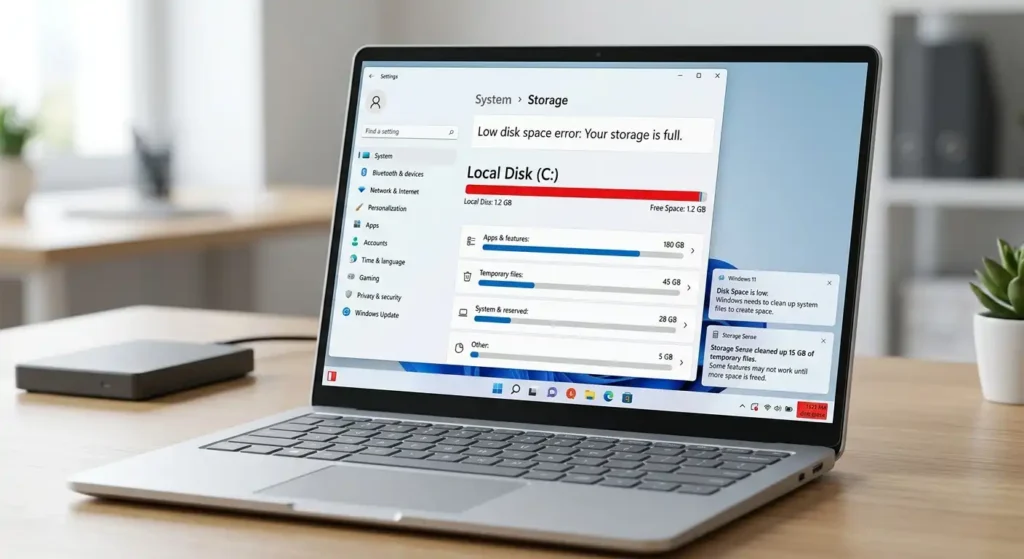
Your laptop needs free storage space to function efficiently. When your drive is nearly full, the operating system struggles to manage temporary files and virtual memory.
The fix:
- Free Up Space: Delete unnecessary files, uninstall unused programs, and empty your Recycle Bin. Use Disk Cleanup (Windows) or similar tools to remove temporary files and system clutter. You can also follow these tips for freeing disk space to improve performance.
4. Outdated Operating System and Drivers
Running an outdated operating system or old device drivers can lead to compatibility and performance issues. Many users ignore software updates, but doing so can cause software conflicts, system instability, and reduced efficiency.
The fix:
- Perform Software Updates: Regularly check and install software updates for your operating system. Update commonly used software.
- Update Drivers: Ensure your device drivers (graphics card, network adapter, etc.) are up to date.
5. Malware and Viruses
Malicious software like viruses, spyware, and malware, doesn’t always announce its presence. These malicious programs run silently in the background, consuming resources and slowing your laptop dramatically.
The fix:
- Run a Full Scan: Use reputable antivirus software to perform a thorough scan of your system. Remove viruses or any detected threats immediately.
- Keep Antivirus Updated: Ensure your antivirus software is always up-to-date with the latest definitions to protect against new threats. If you manage multiple devices in your organisation, learn how to deploy antivirus across business networks to keep all systems protected and up to date.

6. Browser Overload
Modern browsers are powerful, but they can also be resource consuming. Too many open tabs, numerous extensions, and a large cache can consume excessive RAM and processing power, making your entire laptop feel slow.
The fix:
- Close Unnecessary Tabs: Get into the habit of closing tabs you’re not actively using.
- Manage Extensions: Disable or remove browser extensions you don’t frequently use.
- Clear Cache and Cookies: Regularly clear your browser’s cache and cookies.
- Update Browser: Ensure your web browser is updated to its latest version.
7. Overheating
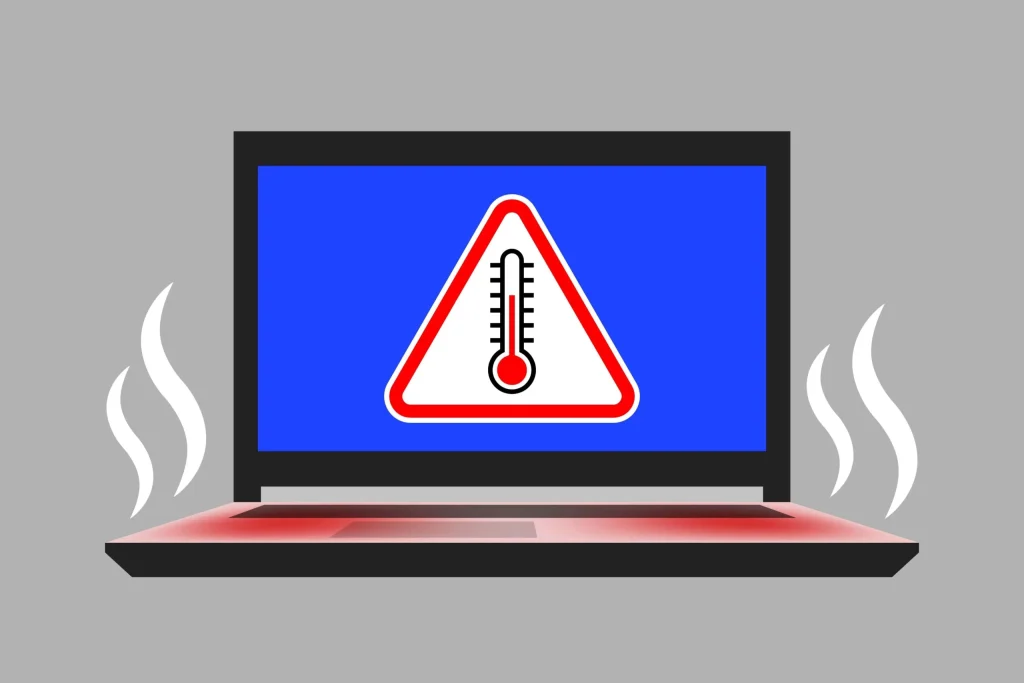
When your laptop gets too hot, its internal components (like the CPU and GPU) automatically slow down to prevent damage. This protective mechanism, known as thermal throttling, directly results in reduced performance.
The fix:
- Clean Vents and Fans: Dust buildup is a common cause of overheating. Use compressed air to clean out your laptop’s vents and fans.
- Use on Hard Surfaces: Avoid using your laptop on soft surfaces like beds or couches, as these can block airflow.
8. Old or Aging Hardware
If your laptop is several years old, its hardware might not be powerful enough to keep up with modern software and demanding tasks. Newer operating system versions and applications require more processing power and RAM than their predecessors. A laptop that worked perfectly five years ago may struggle with current workloads.
The fix:
- Professional diagnostics: A professional assessment can help determine whether repairing or replacing your laptop is the more cost-effective option.
- Consider Upgrades: While not always feasible, some older laptops can benefit from an SSD upgrade (replacing a traditional HDD) or a RAM upgrade.
9. Power Saver Mode
While useful for extending battery life, Power Saver mode often reduces your laptop’s processing power and overall performance to conserve energy. This can make your laptop feel noticeably slower.
The Fix:
- Avoid Power Saver Mode: Keep it turned off if your battery is in good condition.
- Use Balanced or High Performance Mode: For better speed and responsiveness.
- Enable It Only When Needed: Use Power Saver mode only to extend battery life when necessary.
10. Bloatware and Unused Software
Many new laptops come with pre-installed software (bloatware) that you might never use. These programs can run in the background, consume resources, and contribute to performance issues.
The Fix:
- Uninstall Unused Programs: Go through your installed applications and uninstall any software you don’t need or use.
How to Fix a Slow Laptop Quickly: A Proactive Approach
Fixing a slow laptop is only part of the solution. To maintain optimal performance and avoid future slowdowns, make regular maintenance a habit. Start with these simple steps:
- Regular Restarts: A simple restart can clear temporary files, free up RAM, and resolve minor glitches. Aim to restart your laptop at least once a week.
- Keep Software Updated: Always install software updates for your operating system, applications, and drivers. These updates often include critical performance improvements and security patches.
- Monitor Startup Programs and Background Processes: Periodically review what launches with your laptop and what’s running in the background. Disable or close anything unnecessary.
- Maintain Free Disk Space: Try to keep at least 15-20% of your hard drive space free. This allows your operating system to function without hindrance.
- Use Reliable Antivirus Software: Protect your laptop from malware and viruses with up-to-date security software.
- Physical Cleaning: Regularly clean your laptop’s vents and keyboard to prevent dust buildup and overheating.
- Consider Hardware Upgrades: If your laptop is several years old and you’re consistently facing performance problems, consider upgrading components like RAM or switching to an SSD.
If your laptop continues to run slowly despite these measures, professional diagnosis may be the best solution. Our experienced technicians at Computer Mechanics can identify underlying issues and recommend effective repair or upgrade options to restore your laptop’s performance.
Conclusion
A slow laptop doesn’t always mean it’s time for a replacement. In many cases, performance issues are caused by common problems such as too many background programs, limited storage space, outdated software, malware, or aging hardware. Identifying the root cause is the first step toward restoring your laptop’s speed and reliability.
Simple maintenance habits like regular device servicing, timely software updates, and occasional hardware upgrades can significantly extend the life of your laptop and keep it performing at its best.
If your laptop is slowing down more frequently, a professional assessment can help uncover the cause before it develops into a bigger problem. At Computer Mechanics, we offer trusted laptop repair, diagnostics, and performance upgrade services in Perth, helping individuals and businesses get the most out of their devices without the unnecessary cost of replacement.
Frequently Asked Questions
1. How do I clean my laptop to make it run faster?
Start with a mix of physical and digital cleaning.
- Physically, clean vents and fans using compressed air to remove dust that causes overheating and slowdowns.
- Digitally, uninstall unused programs, delete temporary files, and empty the recycle bin. Also clear browser cache and remove unnecessary extensions.
Finally, restart your laptop to refresh memory and background processes.
2. How can I find out what is slowing down my laptop?
If your laptop feels slow, you can quickly identify the cause using built-in tools and a few basic checks.
- Check Task Manager / Activity Monitor for high CPU, RAM, or disk usage
- Review and disable startup programs you don’t need
- Check storage space (low space slows performance)
- Run a virus/malware scan
- Look for overheating or heavy background apps
3. How do I fix the slowness of my laptop?
Fixes depend on the cause, but the most effective steps include:
- Disabling unnecessary startup programs
- Closing background apps you don’t need
- Freeing up at least 15–20% storage space
- Updating your operating system and drivers
- Scanning and removing malware
- Upgrading hardware like RAM or switching to an SSD
4. Is a 7 year old laptop too old?
Not necessarily, but it depends on how it’s used and its specifications. A 7-year-old laptop may struggle with modern software if it has low RAM, an old hard drive (HDD), or an outdated processor. However, it can still perform well for basic tasks like browsing and documents, especially if upgraded with an SSD and additional RAM.
