

Nothing is more frustrating than a computer that restarts without warning, especially in the middle of important work. Whether it happens once or dozens of times a day, a random restart is your PC sending out an SOS. Something is wrong, and if you ignore it, the problem will only get worse.
The good news? Most causes of random restarts are diagnosable and fixable without professional help. In this guide, we walk you through every common culprit, from overheating and bad RAM to corrupted drivers and power supply issues and give you step-by-step instructions to fix a computer that randomly restarts.
Let’s dive in.
Why Does My Computer Randomly Restart?
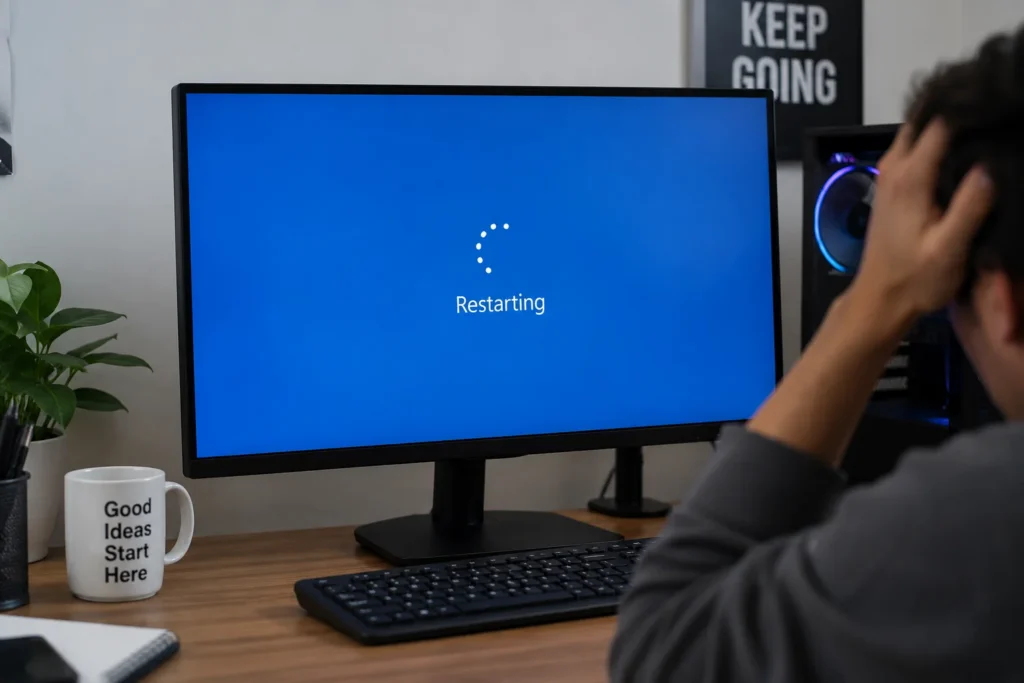
Before jumping into fixes, it helps to understand what is actually causing your computer to restart. Below are the eight most common reasons why your pc randomly restarts:
1. Overheating
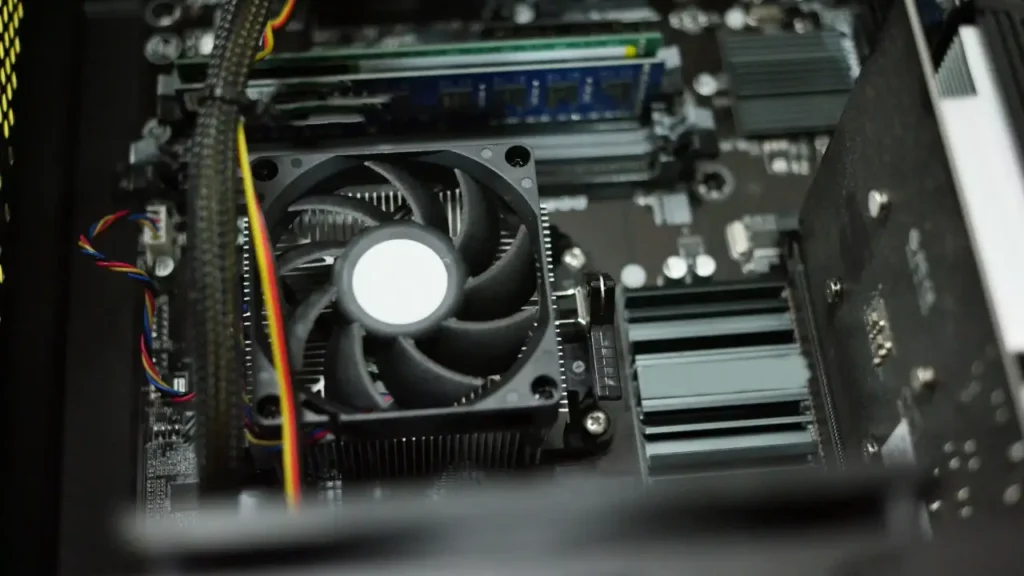
The most common cause of pc booting randomly is overheating. Under load, your CPU temperature (PC’s processor) and GPU temperature (graphics card) rises. When the temperature goes too high, i.e., above 90°C for most CPUs, an automatic shutdown or restart happens as a last resort. This prevents permanent hardware damage.
2. Defective Hardware
Faulty hardware is a serious but often overlooked cause. Your RAM (memory) is especially suspect. Bad RAM can cause crashes, Blue Screens of Death (BSoDs), and random restarts because the system loses access to critical data mid-operation. Similarly, a failing hard drive or SSD can corrupt system files the OS needs to keep running.
3. Overclocking the PC
Overclocking means pushing your CPU, GPU, or RAM beyond their factory-set speeds, which can deliver impressive performance gains. But it comes with a trade-off: instability. When an overclock is too aggressive or the system is under-cooled, your computer can keep restarting randomly.
4. Malware or Virus Infection
Malicious software can wreak havoc on system stability. If you’ve noticed warning signs of malware, malicious software such as rootkits and cryptomining trojans can consume extreme amounts of CPU and memory resources, which can push hardware to overheating thresholds and cause the system to crash or restart. Others intentionally trigger restarts to force Windows updates or disable security tools.
5. Outdated Drivers
Device drivers are the software bridges between your operating system and hardware components. Outdated, corrupted, or incompatible drivers are a well-known cause of system instability, so update drivers regularly. A bad driver can cause kernel panics that force Windows to restart. Often, a Blue Screen of Death appears briefly before the PC reboots randomly.
6. Power Supply (PSU) Problems
If the PSU is underpowered, aging, or showing signs of power supply failure, it may not be able to deliver a stable stream of power to all components, particularly during high-demand moments like launching a game or rendering video. The result? An abrupt restart or shutdown as power drops below required thresholds.
7. Windows Updates
Windows Update is meant to improve speed, security and performance. But it can also cause unexpected restarts. Some updates schedule automatic reboots to complete installation. Others may conflict with existing software or drivers, causing your PC to randomly restart unexpectedly.
8. Software Conflicts
Sometimes the problem isn’t hardware at all. It’s software fighting itself. Two programs that both try to access the same system resource, or a newly installed application that conflicts with an existing one can cause the OS to become unstable and trigger a restart. This is common with third-party antivirus software, VPNs, and overclocking utilities.
What Your Computer’s Restart Pattern Says About the Problem

Now that you know the most common causes, the next step is to look at when your computer restarts. The timing can often point you toward the most likely problem, helping you focus on the right fix instead of trying everything.
| When your computer restarts | Possible Causes |
| While gaming or running heavy programs | Overheating, graphics card issues, or a failing power supply. Checking your CPU temperature or GPU temperature can help identify if heat is the cause. |
| During startup or before Windows loads | Corrupted system files, faulty drivers, or storage issues. |
| After installing new hardware | Loose connections, incompatible components, or incorrect installation. |
| Shortly after a Windows update | Update conflicts, outdated drivers, or software compatibility issues. |
| After a Blue Screen of Death (BSOD) | Faulty RAM, driver issues, or hardware failure. |
| At completely random times | Malware, failing hardware, power supply problems, or software conflicts. |
Once you have identified the pattern, follow the relevant solutions below to fix the issue more efficiently.
How to Fix a Computer That Randomly Restarts
Now that you know the causes, let’s fix them. Work through these solutions from top to bottom to fix a pc that reboots randomly. They’re ordered from most common to most complex.
Fix 1: Check and Reduce Overheating
- Download HWMonitor or Core Temp to monitor CPU temperature and GPU temp in real time.
- Run a stress test using Prime95 (CPU) or FurMark (GPU) and watch the temps.
- If your CPU temperature exceeds 90°C or your GPU temperature goes above 95°C, overheating is likely the cause of the random restarts.
Then take action:
- Open your case first. Use compressed air to blow out dust from all fans, heatsinks, and vents.
- Make sure all case fans are spinning and blowing in the correct direction (intake from front/bottom, exhaust from rear/top).
- Re-applying thermal paste to the CPU if the PC is more than 3 years old.
- The computer should not be enclosed in a cabinet or tight space with poor airflow.
Fix 2: Test Your RAM
- Press Win + R, type mdsched.exe, and press Enter to open the Windows Memory Diagnostic tool. Choose “Restart now and check for problems.” Windows will reboot and run a memory test.
- For a deeper test, download MemTest86, boot from a USB drive, and let it run for several passes.
- If you have multiple RAM sticks, try to remove one at a time to isolate a faulty module.
Fix 3: Check for Recent Hardware Changes
If the restarts began after you upgraded your laptop or computer, the newly installed component may not be compatible with your system. Incompatible or incorrectly installed parts can make your system unstable, even if the installation appears successful.
Check the following:
- Make sure newly installed RAM, graphics cards, or storage drives are properly seated.
- Verify that all power and data cables are securely connected.
- Confirm that the new hardware is compatible with your motherboard and power supply.
- If possible, remove the recently installed component and see if the random restarts stop.
If the issue began immediately after a hardware upgrade, identifying and correcting the installation or compatibility issue can often resolve the problem without further troubleshooting.
Fix 4: Check Your Hard Drive or SSD
- Open Command Prompt as Administrator and run: chkdsk C: /f /r. This scans for and repairs file system errors.
- Download CrystalDiskInfo to check your drive’s SMART health status.
- A drive that shows “Caution” or “Bad” status should be replaced immediately and data backed up.
Fix 5: Revert or Disable Overclocking
- Restart your PC and enter BIOS/UEFI. Usually by pressing Del or F2 during startup.
- Find the option to “Load Optimized Defaults” or “Reset to Default” to remove all overclocking settings.
- If using software overclocking tools (MSI Afterburner, Intel XTU), reset all profiles to stock.
- Test for stability. If the restarts stop, your overclock was unstable.
Fix 6: Scan for Malware
- Run a full scan to remove viruses and malware with Windows Defender (built-in and free): go to Windows Security > Virus & Threat Protection > Full Scan.
- For a second opinion, download and run Malwarebytes Free. It catches things Defender can miss.
- Check Task Manager (Ctrl + Shift + Esc) for any suspicious processes consuming unusual amounts of CPU or RAM.
- If a threat is found, follow the virus removal instructions and restart your PC.
Fix 7: Update or Reinstall Drivers
- Right-click the Start button, select Device Manager, and look for any devices with a yellow warning triangle.
- For your GPU: visit NVIDIA, AMD, or Intel’s official website and download the latest driver for your specific card model.
- Use DDU (Display Driver Uninstaller) in Safe Mode to fully remove old GPU drivers before installing new ones.
- Also check for chipset, network, and audio driver updates from your motherboard manufacturer’s website.
- If your computer manufacturer has released a newer BIOS or UEFI update, it may improve hardware compatibility and fix stability issues that cause unexpected restarts. Only download BIOS updates from the manufacturer’s official website and follow the installation instructions carefully, as an interrupted update can cause serious system problems.
Fix 8: Investigate Power Supply Issues
- Use an online PSU calculator (like the one from OuterVision) to verify your PSU wattage is sufficient for your components.
- Check all power cables are securely connected to the motherboard, GPU, and drives.
- If the PSU is 4+ years old and showing signs of failure, consider replacing it. A quality 80+ Bronze rated PSU is not expensive.
- Try testing with a known-good PSU borrowed from another PC if possible.
Fix 9: Manage Windows Updates
- Go to Settings > Windows Update and make sure all updates are fully installed and not stuck mid-install.
- If restarts started after a specific update, use Settings > Windows Update > Update History > Uninstall Updates to roll back the problematic update.
- Set active hours in Windows Update to prevent automatic restarts during your work schedule.
- Run System File Checker to repair corrupted OS files: open Command Prompt as Admin and type sfc /scannow.
Fix 10: Resolve Software Conflicts
- Think about what was installed or changed before the restarts started. Uninstall recently added software.
- Boot into Safe Mode. To do so, hold Shift while clicking Restart to test if the restarts stop. If they do, a third-party program is responsible.
- Use Event Viewer (Win + X > Event Viewer) to check for critical errors around the time of each restart.
- As a last resort, consider a clean install of Windows to eliminate any lingering software corruption.
Fix 11: Disable Automatic Restart to Identify the Error
By default, Windows automatically restarts after a system failure. This can prevent you from seeing important error messages, such as a Blue Screen of Death (BSOD), that help identify the root cause.
To disable automatic restart:
- Press Windows + R ⇒ type sysdm.cpl ⇒ press Enter.
- Open the Advanced tab ⇒ click Settings under Startup and Recovery.
- Uncheck Automatically restart under System failure, then click OK.
- Restart your computer and wait to see if an error message appears instead of an automatic restart.
If a Blue Screen appears, note down the error code. It can provide valuable clues about whether the issue is related to faulty hardware, drivers, or system files, making it easier to troubleshoot.
When to Go for Professional Repair
Most random restart problems can be solved at home with the fixes above. However, there are situations where professional repair is genuinely the right call if your computer is restarting randomly. Here’s how to know when you’ve reached that point:
- You’ve worked through all the fixes above and the restarts continue without explanation.
- A hardware component (RAM, HDD, GPU) has been tested as definitively failed and needs physical replacement.
- Unusual sounds, clicking, grinding, and electrical buzzing from inside the case.
- The computer won’t even boot reliably enough for you to run diagnostics.
- You’re not comfortable opening the case or working inside the machine.
In these cases, a reputable local PC repair shop or the manufacturer’s support line (if the PC is under warranty) can diagnose and fix the problem safely. If you’re in Perth, contact Computer Mechanics. We can inspect your system, identify the faulty component, repair or replace it quickly, and also back up data and recover your data if needed.
A good rule of thumb: if you’ve spent more than 2–3 hours troubleshooting without progress, or if there’s any risk of data loss, a professional’s time is worth the cost.
Conclusion
A computer that randomly restarts is never a problem to ignore. It might start as an occasional inconvenience but can escalate into data loss, hardware damage, or a fully unbootable system if it’s left unaddressed. The vast majority of restart problems, like overheating, bad RAM, driver issues, and malware, are fixable with the right approach.
Start with the simplest, most likely culprits first. If those don’t resolve it, move into hardware diagnostics with memory tests and drive health checks. Work methodically, and you’ll find the cause.
And remember, if you’re ever uncertain, it’s always better to ask a professional than to risk making things worse. Your data and hardware are worth protecting.
FAQs
1. What can cause a PC to restart randomly?
The most common reasons a PC randomly restarts are:
- Overheating CPU or GPU
- Faulty RAM or failing storage drives
- Overclocked components running unstable
- Malware or virus infections
- Outdated or corrupted drivers
2. Can faulty RAM cause computers to reboot randomly?
Yes. Faulty RAM is one of the top reasons a PC reboots randomly. When your system loses access to critical data stored in bad memory modules, it can crash, show Blue Screens of Death (BSoDs), or restart unexpectedly. Testing RAM with tools like Windows Memory Diagnostic or MemTest86 can help identify if memory is the cause.
3. Can a virus cause random restarts?
Absolutely. Certain malware, such as rootkits or cryptomining trojans, can overuse your CPU or RAM, pushing the system to heat up or crash. Some malicious programs can trigger unexpected restarts, disable security features, or overload system resources, causing your computer to become unstable. Running a full antivirus scan and a second-opinion tool like Malwarebytes can often fix this.
4. Why does my computer restart automatically after updates?
Windows updates often require a restart to complete installation. While this is normal, problems occur if:
- Update conflicting with existing drivers or software
- An incomplete update gets stuck mid-install
- Scheduled restarts happen during your work hours
You can manage this by setting active hours in Windows Update, uninstalling problematic updates, or running system repair tools like sfc /scannow.
5. How can I fix a PC that randomly restarts?
Here are the main steps to troubleshoot a PC that keeps restarting:
- Check CPU/GPU temps, clean dust
- Test RAM and drives
- Scan for malware
- Update drivers
- Check power supply and software conflicts
Start with simpler fixes like software scans and temperature checks before moving to hardware diagnostics.
6. What should I do if I’ve tried all the fixes but my PC still keeps restarting?
If your computer keeps rebooting despite all attempts:
- Consider professional repair. Some problems, like failing RAM, GPU, or PSU, require hands-on replacement.
- Avoid tinkering further if you’re unsure; improper handling can worsen the issue.
- Backup your important data immediately to prevent loss.
- Take note of unusual signs, such as clicking sounds, electrical buzzing, or a PC that won’t boot reliably.
In short, persistent restarts after troubleshooting usually mean a hardware issue or complex software corruption that’s best handled by an expert.
7. How to find out why my PC randomly restarts?
To find out why your PC randomly restarts, first look at when the restart happens.
- Restarts during gaming or heavy programs may point to overheating, GPU problems, or a failing power supply.
- Restarts during startup may indicate corrupted system files, faulty drivers, or storage issues.
You can also check CPU and GPU temperatures, test your RAM with Windows Memory Diagnostic or MemTest86, check your drive health, scan for malware, and review Event Viewer for critical errors. Disabling Windows’ automatic restart can also help you see a Blue Screen of Death (BSOD) and identify the error code causing the restart.
8. Can a bad GPU cause random restarts?
Yes. A faulty, overheating, or unstable GPU can cause random restarts, particularly when the graphics card is under heavy load, such as during gaming, video rendering, or other demanding applications.
Check the GPU temperature and make sure its fans are working and the card is free of excessive dust. Updating or reinstalling the graphics driver can also help. If the GPU has been overclocked, return it to its factory settings and test the system again.
