
Did you know that some CPUs can reach over 100°C under heavy load? That kind of heat can make your PC very slow, cause unexpected shutdowns, or even damage components over time.
Since modern CPUs are capable of reaching high speeds, it is very important that you keep track of your computer’s CPU temperature if you want your system to remain fast, stable, and safe. Knowing how to measure, interpret, and manage CPU temp will not only save your hardware but also be a way to get the best performance out of your machine.
This guide will help you understand different CPU temperature ranges, give you some advice on how to check PC temps, different ways to cool down a CPU, and also provide answers to the most common questions regarding CPU temperature.
Understanding CPU Temperature
The CPU/Central Processing Unit is the brain of your computer. To keep the whole computer system running, the CPU does exhaustive work from running apps to processing complex calculations, but this generates heat. CPU temperature is a measure of this heat, which is normally measured in degrees Celsius or Fahrenheit.
- At high CPU temperatures, system performance is lowered due to thermal throttling. Thermal throttling is actually the mechanism by which the CPU slows down in order to protect itself from damage.
- After some time, excessive heat can cause unusual pc issues and most definitely damage your laptop or computer’s processor, motherboard, or even some other components.
- Maintaining optimal CPU temp improves energy efficiency, and thus, the total lifespan of your device will increase.
Healthy CPU Temperature
A healthy CPU temperature depends on the type of CPU (Intel, AMD, or ARM), its generation, cooling solution, and workload. Maintaining normal CPU temperature ensures:
- Smooth performance without sudden slowdowns
- Reduced risk of system crashes or unexpected shutdowns
- Longer lifespan for the CPU and also the surrounding components
As a general rule, a CPU core temperature that is regularly above 45–50°C while it’s idle may signify that there is a problem, and under full load, temperatures that regularly exceed 90–105°C are probably the reason for concern; however, all this depends on your specific CPU model.
For desktop CPUs, typical ideal CPU temp varies by activity, while laptops and ultrabooks often run slightly warmer at idle due to compact cooling solutions.
Healthy CPU Temperature Ranges
Based on usage scenarios, a healthy CPU temperature range is as follows:
| Usage Scenario | Typical Temperature Range (°C) | Typical Temperature Range (°F) | Approx. CPU Load (%) |
| Idle / Light Use | 30–45 | 86–113 | 1–10% |
| Web Browsing / Streaming | 40–60 | 104–140 | 5–25% |
| Work / Productivity | 50–65 | 122–149 | Medium |
| Gaming | 60–80 | 140–176 | 40–70% |
| Video Editing / Rendering | 70–85 | 158–185 | 70–100% |
| Stress Testing / Maximum Safe | 90–105 | 194–221 | 100% |
TJMax (Maximum Operating Temperature):
This is the maximum temperature that each processor is designed to handle, the built-in limit. For instance, Intel CPUs generally begin throttling at a temperature of about 100–105°C, while AMD ones do so at 89–95°C, to keep the components safe. Short temperature spikes are usually fine; however, continuous activity at such temperatures is quite risky. Usually, in an idle state, laptops and ultrabooks are warmer due to poor ventilation because of compact cooling systems.
Modern CPU Examples:
- AMD Ryzen 5000 & 7000 series (Desktop): These series can operate safely even when the CPU temperature is 95°C. But some high-end models like Ryzen 9 7950X3D have a lower TJMax of 89°C.
- AMD Ryzen 7000 Series (Laptop): Designed with efficiency in mind. The typical temperature of the CPU can range from 70–95°C when performing heavy duties.
- Intel Core i9 12th–14th Gen (Desktop): The processor sometimes might reach 100°C under heavy load, but newer Arrow Lake CPUs generally tend to run cooler, so they are comparatively easier to manage.
- Intel Core i7 / i5 12th–14th Gen (Desktop & Laptop): Typical safe load temps range from 70–90°C. Might reach 100°C under heavy load.
- Apple M1 / M2 (Laptop/Desktop): Thanks to their efficient ARM design, the temperature of these CPUs when idle stays at 30–45°C, and also load temps rarely exceed 85°C even when the workload is heavy.
- High-End Workstation CPUs:
- AMD Threadripper (Desktop/Workstation): It’s made for multi-core tasks. And the CPU usually stays safe between 60–95°C, depending on usage.
- Intel Xeon (Server/Workstation): Typically, temp is below 80–85°C under load. However, heavy server workloads can push temps higher.
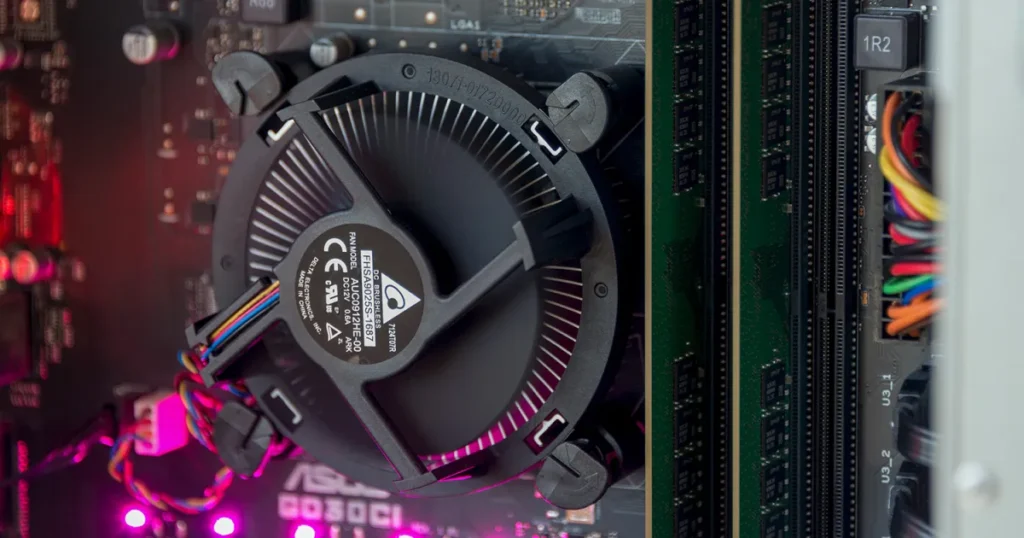
How to Check Your CPU Temperature
Being aware of your CPU temperature is a must to keep the performance at a high level and prevent any kind of hardware damage. CPU temperature tracking is quite informative as it shows how the system behaves under various loads like simple web-browsing, gaming, or running some heavy software.
If you are monitoring temperatures regularly, you can prevent CPU and laptop overheating and maintain a healthy CPU temperature. Here’s a detailed guide on how to check PC temps:
1. BIOS/UEFI Method
Most motherboards display CPU temperature in the BIOS/UEFI firmware. Restart your PC, press the BIOS key (usually F2, Del, or F10), and navigate to hardware monitoring.
Tips:
- The exact keys to enter BIOS can vary depending on your PC’s manufacturer and model. Check your official support page if you’re unsure.
- BIOS shows current CPU temp, but it doesn’t capture peak temperatures. Also, because you have to restart your PC, it’s not practical for regular monitoring under load.
2. Windows Utilities
Windows has some built-in tools like Task Manager, Windows Security, or manufacturer-specific apps like Lenovo Vantage and HP Command Center, which can be used for monitoring your CPU. These tools can display the overall CPU usage, system health, and, in some cases, basic temperature readings, but they have their limitations. They are only good for quick checks but not for in-depth monitoring or troubleshooting.
3. Third-Party Software
Installing third-party software on your computer is by far the most convenient method to perform a real-time CPU temperature check. A number of such applications also offer the feature of temperature history with the possibility of setting temperature alerts, or changing the fan speed in order to cool the CPU. Here are some popular options:
- HWMonitor: HWMonitor is a great tool that gives a full picture of the temperatures, voltages, and fan speeds of the entire system to the user. Alongside, it shows the readings for your CPU, GPU, and the motherboard, even hard drives. It is a very light tool, user-friendly, and almost compatible with any modern hardware.
- Core Temp: Core Temp is a program that only focuses on the CPU issue. It shows the temperature of each CPU core separately, which is helpful if you want to check if one core is hotter than the other. In addition, you can log temperature changes over time or set alert notifications if temperatures reach a certain level.
- NZXT CAM: With NZXT CAM, you can not only monitor the temperature of the CPU, but also set up fan control and system alerts. Here, CPU and GPU temperatures can be monitored along with frame rates and system usage. You can even be set up with custom fan curves so that your system remains quiet and cool.
- SpeedFan: SpeedFan is a great tool for advanced users. It monitors temperatures, and you can control fan speeds manually. By tweaking fan curves, you can bring down CPU temp or even reduce noise. Moreover, if temperatures go beyond a certain threshold, it can notify you as well, which helps to prevent overheating.
4. Stress Testing
Stress testing is a technique used for checking the performance as well as the cooling of a CPU when it is operating at its maximum capacity. It is especially helpful if your target is to make sure that the system will remain stable under heavy and demanding tasks.
- Tools: Prime95, AIDA64, Cinebench R23.
- Monitoring: Use any of the tools above (HWMonitor, Core Temp) to track temperatures while stress testing.
- Duration & Limits: When you start a stress test, the CPU heats up as it works hard. Usually, temperatures reach a stable point within 10–15 minutes. Continuous temperatures above 95°C (or your CPU’s TJMax) are dangerous. Only brief spikes are generally considered safe.
Tip: Only perform stress tests if the environment is ventilated very well. Do not leave your system unattended. Perform computer maintenance frequently.
5. Infrared Thermometers and Thermal Imaging Guns
For the most accurate, real-time measurements, you can use IR thermometers or thermal imaging cameras. They are the perfect tools that can do what many other methods cannot – measure the heat radiating from your CPU directly, without adding load to the system:
- IR Thermometer: Quick and simple; some models save readings for tracking over time (e.g., NF-HT650C).
- Thermal Imaging Camera: It gives a heat map in real-time, which can be very helpful in identifying hot spots, and also has the ability to record video for later review of CPU performance under load (e.g., NF-521S).
Pro Tip: Always check CPU temperatures under both idle and load conditions.IR devices are especially great for accurate measurements without artificially stressing the CPU.

How to Fix High CPU Temperature
If your CPU is running hotter than recommended, follow these steps:
1. Improve Cooling
- Clean Dust: Dust accumulation on heatsinks and fans reduces cooling efficiency.
- Replace Thermal Paste: Over time, thermal paste dries and loses effectiveness, so replace thermal paste.
- Upgrade CPU Cooler: Consider air coolers or liquid cooling solutions for high-performance CPUs.
2. Optimise Airflow
- Ensure your PC case has unobstructed airflow
- Add additional intake and exhaust fans if needed
- Manage cable clutter to prevent airflow obstruction
3. Reduce Workload
- Close unnecessary apps or background processes, which makes the PC/computer faster.
- Avoid excessive multitasking during gaming or rendering
- Consider upgrading RAM to reduce CPU load
4. Software & Firmware Updates
- Keep BIOS up-to-date and also update drivers frequently.
- Use fan curve settings in BIOS or software utilities to optimise cooling
5. Advanced Techniques
- Undervolting: Reduce CPU voltage to lower heat without reducing performance significantly
- Underclocking: Reduce CPU clock speeds to decrease heat generation
6. Laptop-Specific Tips
- Use a cooling pad for better airflow
- Avoid using laptops on soft surfaces like beds or couches
Conclusion
Maintaining a healthy CPU temperature is basically a must for system stability as well as for maintaining long-term performance. So, by knowing the CPU temperature ranges, always addressing high CPU temp proactively, you are making system crashes less likely, component lifespan longer, and overall efficiency better.
Is your CPU overheating or running warmer than it should? Computer Mechanics in Perth provides quick laptop and computer repairs. We can diagnose the cause, clean your cooling system, replace thermal paste, or repair faulty fans and hardware. Our fast, expert service helps restore safe CPU temperatures and keeps your computer performing at its best.
FAQs
Q1: What is a normal CPU temperature?
Normal CPU temperatures vary depending on what your PC is doing. When idle, most CPUs run between 30–50°C. During everyday tasks like browsing or watching videos, temperatures are usually 50–70°C. Heavy gaming or rendering can push it up to 70–85°C.
Q2: How do I check my CPU temperature?
You can check CPU temps in BIOS or UEFI during startup. Windows users can also use built-in utilities or any third-party apps such as HWMonitor, Core Temp, or NZXT CAM, which show real-time temperature and sometimes even log data for later.
Q3: How to fix CPU overheating?
Start by cleaning dust from your fans and vents. If your thermal paste is old, replace it, or if your cooler is not sufficient, upgrade it. Closing background processes will also reduce CPU usage.
Q4: What software cools down the CPU?
Software does not directly cool the CPU. Cooling is done by hardware, like fans, liquid cooling, or heat sinks. What software like NZXT CAM, SpeedFan, or HWMonitor does is monitor temperatures and control fan speeds (if your motherboard and fans support it)
Q5: How can I cool down my CPU?
Ways to reduce the temperature of a CPU include:
- Removing dust that is accumulated in the fans, vents, and heatsinks
- Ensuring that all fans are in working condition
- Adding extra case fans to improve airflow (for desktops)
- Using a laptop cooling pad to increase ventilation (for laptops)
- Changing or upgrading your CPU cooler
- If the thermal paste is old and dried, applying new paste
Q6: Why is my CPU overheating?
Overheating can happen because of poor airflow, clogged dust, heavy workloads, or outdated drivers. Sometimes the thermal paste dries out and stops transferring heat effectively.
Q7: What is used to cool down the CPU?
CPUs are cooled using air coolers, liquid cooling systems, or thermal paste. Case fans help move hot air out. Laptops may use heat pipes or cooling pads to stay safe.
Q8: What is the ideal CPU temp for gaming?
If the CPU temperature is 70–85°C during gaming, it is a healthy CPU temperature. Short spikes above 85°C are usually fine, but if the CPU temperature is constantly over 90°C, it can damage your CPU, or performance might be reduced as well.
Q9: Can high CPU temperature damage my PC?
Yes. High temperatures are a primary reason for computer freezes, slowdowns, and they are the main factor that shortens the life of a CPU. If these are very frequent instances and you let the system overheat, it’s capable of damaging even other components in your computer.