

A computer that takes forever to boot, lags when you open a handful of tabs, or leaves you staring at a loading screen isn’t usually from a weak processor or too little RAM. More often, the real problem lies inside the case: an aging storage drive that simply can’t keep up with the system needs.
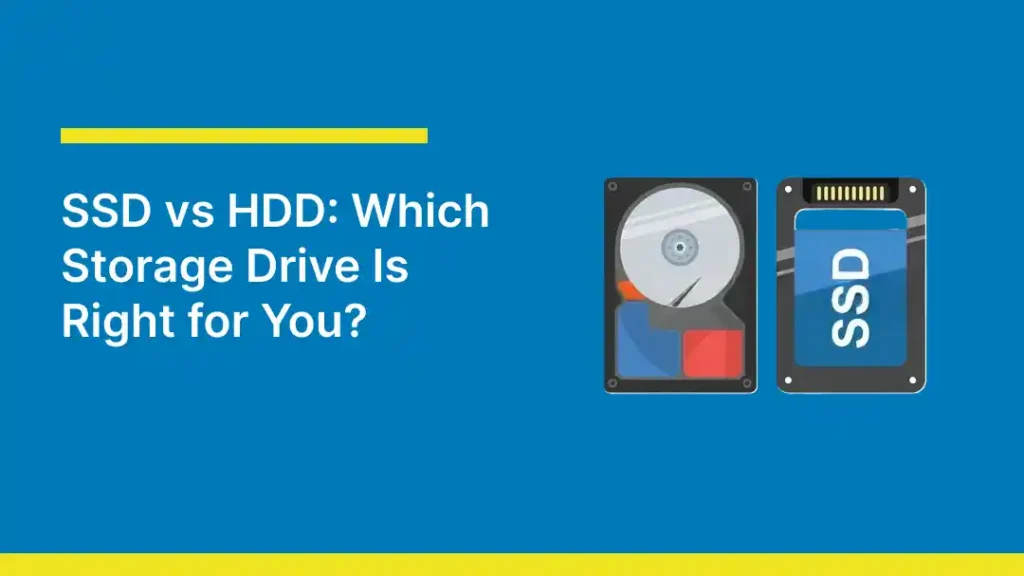
SSDs and HDDs are two storage technologies, both hold your operating system, apps, and files, but function differently. SSDs use flash memory with no moving parts, making them faster, quieter, and more durable than HDDs, which rely on spinning magnetic platters. While SSDs offer superior performance, HDDs remain the more cost-effective choice for large-capacity storage.
This guide walks through exactly how SSDs and HDDs compare on speed, cost, capacity, durability, and lifespan, and breaks down which drive may fit your laptop, desktop, gaming setup, or backup needs.
What Is an SSD?
A solid-state drive (SSD) is a storage device that saves data on interconnected flash memory chips instead of spinning disks. There are no moving parts inside an SSD; data is written and read electronically, which is why SSDs are dramatically faster and more shock-resistant than traditional hard drives.
SSDs use a type of non-volatile storage called NAND flash. Data is retained even when the power is off, the same principle that keeps files intact on a USB drive. An integrated controller chip manages critical operations: it dictates data placement, distributes wear evenly across memory cells to maximize hardware longevity, and executes background maintenance tasks like the TRIM command to sustain peak performance as the drive fills up.
SSDs come in a few common form factors:
- 2.5-inch SATA SSDs: The same physical size as older laptop hard drives, making them an easy drop-in storage upgrade.
- M.2 SSDs: Small, gum-stick-sized drives that mount directly onto the motherboard, standard in most modern laptops and desktops.
- PCIe/NVMe SSDs: The fastest consumer option, communicating directly over the PCI Express bus rather than the older SATA interface.
NVMe drives in particular can outperform SATA SSDs several times over, because NVMe was designed specifically for flash storage rather than adapted from older hard drive standards.
What Is an HDD?
A hard disk drive (HDD) is the traditional, mechanical form of computer storage. Data is recorded magnetically onto spinning platters, and a read/write head, mounted on a moving arm. It accesses that data as the platters rotate at high speed, typically 5,400 to 7,200 RPM in consumer drives.
HDDs are also non-volatile, meaning stored data survives a power-off, just like an SSD. The core difference is entirely mechanical: an HDD has to physically move a read/write head to the correct location on the platter before it can retrieve data, while an SSD accesses any memory cell almost instantly than a hard drive.
This mechanical design is also why HDDs are sensitive to fragmentation. When a drive fills up, large files can get split into pieces scattered across the platter. The read/write head then has to jump between locations to reassemble the file, which slows things down.
SSD vs. HDD: Key Differences
1. Speed
Speed is where the two storage technologies diverge the most. An SSD-equipped computer typically boots in under 15 seconds and launches applications almost instantly, because there’s no physical component that needs to move before data becomes accessible.
When looking at the advantages of ssd over hdd, performance is the most immediate factor; a standard 7,200 RPM HDD tops out around 150–250MB/s in sequential read/write speed, whereas a SATA SSD roughly doubles that, and NVMe SSDs go much further up to 3,500–7,000MB/s.
Why it matters: Faster read/write speed doesn’t just mean quicker boot times, it directly affects how fast files transfer, how quickly games load, and how responsive your system feels during everyday multitasking.
2. Cost
HDDs remain cheaper on a cost-per-gigabyte basis, though the gap has narrowed significantly compared to a decade ago. A 2TB internal 3.5-inch HDD typically costs around $55–65, while a 2TB SATA SSD starts around $90–110. NVMe drives of the same capacity often cost more still, though prices have been falling steadily each year.
For raw storage volume on a budget, HDDs still win. But the price difference per drive is no longer large enough to justify a hard drive as your primary boot drive for most users.
3. Capacity
Consumer SSDs are commonly available from 250GB up to 4TB, with 8TB+ options existing but priced at a premium. HDDs scale more affordably at higher capacities, 4TB, 8TB, and even 20TB+ drives are common and relatively inexpensive per terabyte, which is why HDDs remain popular for bulk storage, NAS systems, and backup drives.
If your priority is fitting a large media library or years of backups onto a single drive without spending a fortune, HDD capacity is hard to beat.
4. Durability & Shock Resistance
SSDs have no moving parts, so they hold up far better against drops, bumps, and vibration, a meaningful advantage for laptops and portable/external drives that get moved around. HDDs contain a read/write head flying just nanometers above a spinning platter; a hard knock while the drive is operating can cause the head to contact the platter and damage stored data.
This is one reason external SSDs have become the default recommendation for anyone regularly traveling with a backup drive.
5. Noise & Power Draw / Battery Life Impact
HDDs make audible noise, a faint whir from the spinning platters and occasional clicking from the read/write head. SSDs are completely silent, since there’s nothing mechanical to generate sound.
Power consumption follows the same pattern. HDDs use more energy spinning up and maintaining platter rotation, while SSDs draw less power since they only activate the specific memory cells being accessed. On a laptop, this translates to measurably longer battery life with an SSD installed instead of an HDD.
6. Lifespan
Both drive types eventually wear out, just through different mechanisms. HDDs fail mechanically over time with motor wear, head degradation, or platter issues. SSDs have a finite number of write cycles per memory cell, tracked through a rating called TBW (terabytes written). SSDs use a technique called wear-leveling, a background process that spreads write operations evenly across all memory cells, and helps extend SSD lifespan considerably.
In practice, lifespan is close to a wash for typical consumer use. Most users will replace their computer for other reasons (age, changing needs) long before either drive type reaches its natural end of life. The bigger practical difference is failure behavior: HDDs tend to show warning signs (unusual noises, slowdowns) before failing, while SSDs can fail suddenly when the controller chip malfunctions, with less warning.
7. Form Factor Options
HDDs are limited to 2.5-inch (laptop) and 3.5-inch (desktop) form factors because of the physical space spinning platters require. SSDs aren’t bound by that constraint — beyond the 2.5-inch option built for backward compatibility with older drive bays, SSDs are also available as M.2 sticks and PCIe expansion cards, giving manufacturers far more flexibility in designing thinner, lighter devices.
This is a major reason ultra-thin laptops universally use SSDs: there simply isn’t room for a mechanical drive in a chassis a few millimeters thick.
Quick Comparison Table
| Factor | SSD | HDD |
| Speed | 500–7,000+ MB/s | 150–250 MB/s |
| Cost (per GB) | Higher | Lower |
| Typical capacity | 250GB–4TB (consumer) | Up to 20TB+ |
| Durability | Shock-resistant, no moving parts | Vulnerable to drops/vibration |
| Noise | Silent | Audible whir/clicking |
| Power draw | Lower | Higher |
| Lifespan | Limited write cycles (TBW-rated) | Mechanical wear over time |
| Form factors | 2.5″, M.2, PCIe/NVMe | 2.5″, 3.5″ only |
| Best for | Boot drive, gaming, portability | Bulk storage, backups, budget capacity |
sbb-itb-078dd21
SSD vs. HDD: Choosing the Right Drive
1. For Everyday Computing
For general browsing, office work, and everyday tasks, an SSD is the clear choice. The speed difference is noticeable from the moment you turn the computer on, and modern SSDs are affordable enough at 500GB–1TB capacities to cover most everyday storage needs without a major price premium.
2.For Gamers/Tech Professionals
Gamers and tech workers benefit from high-speed storage as it makes heavy games or apps and huge files load almost instantly, compared to slow regular hard drives. Modern games and heavy work projects can easily eat up massive amounts of storage space exceeding 50–100GB per file, so people use a smaller NVMe SSD for their operating system and everyday apps, paired with a larger HDD for the rest of their library. Professional applications like 3D rendering or animation also rely heavily on fast storage to keep everything running smoothly without frustrating freezes.
3. For Mass Storage and Long-Term Backups
For archiving massive data libraries, such as extensive photo collections, raw video footage, and system backups, an HDD remains the most cost-effective option. Because read and write speeds are secondary for files you rarely access, hard drives deliver significantly more terabytes per dollar, making them ideal for high-capacity storage needs where budget outweighs performance. Regardless of which drive type you rely on for archives, regularly backing up data to a secondary location or cloud service remains essential to prevent permanent file loss.
4. For External and Portable Drives
Portable storage requirements depend entirely on mobility and physical environment. For a drive carried around regularly for on-the-go backups or frequent file transfers, an external SSD is essential. It offers rapid transfer speeds, lightweight durability, and high resistance to drops. For a drive that mostly sits at a desk as a backup destination, an external HDD offers more storage for less money, since portability and shock resistance matter less in a stationary setup.
The Hybrid Approach: Optimizing Storage with Both Drives
You don’t have to choose exclusively between the SSD and hard drive. The most common setup among both casual and power users pairs a smaller SSD (500GB–1TB) as the primary boot drive that runs the operating system and frequently used applications, along with a larger HDD as secondary storage for files, media, and backups that don’t need instant access speed.
This hybrid approach gives you the responsiveness of an SSD where it matters most (day-to-day performance) and the affordable bulk capacity of an HDD where speed is less critical. It’s a standard configuration in pre-built desktops or laptops and is easy to replicate if you want to upgrade laptop hdd performance without completely sacrificing massive storage space.
Ready to Speed Up Your Computer? Let Us Handle the Upgrade
For most everyday use, gaming, and work, an SSD is the smarter primary drive, while an HDD still earns its place for cheap bulk storage and backups. Many setups get the best of both by running an SSD for speed and an HDD for extra space, so the right pick usually comes down to how you use your computer, not which drive is “better” overall.
If you’re ready to make the switch, we at Computer Mechanics Perth can take the guesswork out of it. Our technicians assess your current PC or laptop, recommend the right SSD type and capacity for your needs, and handle the entire upgrade process, including safe data transferring and backing up your important files across, so nothing gets lost in the process. Whether you’re upgrading an aging hard drive, adding an NVMe drive to a gaming PC, or setting up a hybrid SSD-plus-HDD configuration, we’ve got you covered with fast turnaround and no data-loss risk.
FAQs
Is a 256GB SSD better than a 1TB hard drive?
Comparing a 256GB SSD with a 1TB HDD depends on your use and needs. SSD will provide faster boot times, application launches, and file transfers, making it better for performance whereas the 1TB hard drive offers more storage space.
Is SSD worth the extra cost?
For most users, yes. The speed difference affects boot times, application loading, and overall responsiveness every single time you use the computer, which makes the price worthwhile for anyone using their device daily.
Can I upgrade my old PC from HDD to SSD?
Yes, most desktops and laptops built in the last 10-15 years can accept a 2.5-inch SATA SSD as a drop-in replacement, and many can also support an M.2 SSD if the motherboard has the right slot. The process typically involves cloning your existing drive or doing a fresh operating system install, then physically swapping the drive.
Do SSDs really wear out faster than HDDs?
Not necessarily faster, just differently. SSDs have a finite number of write cycles per memory cell, tracked as a TBW rating, while HDDs wear out mechanically through motor and head degradation. For typical consumer usage, both drive types will comfortably outlast the useful life of the computer they’re installed in.
Is data recovery harder on a failed SSD?
Generally, yes. When an HDD fails mechanically, data often remains physically intact on the platters and can frequently be recovered by a specialist. When an SSD’s controller chip fails, data recovery becomes significantly more complex and, in some cases, impossible, since the controller manages how data is distributed across memory cells.
