

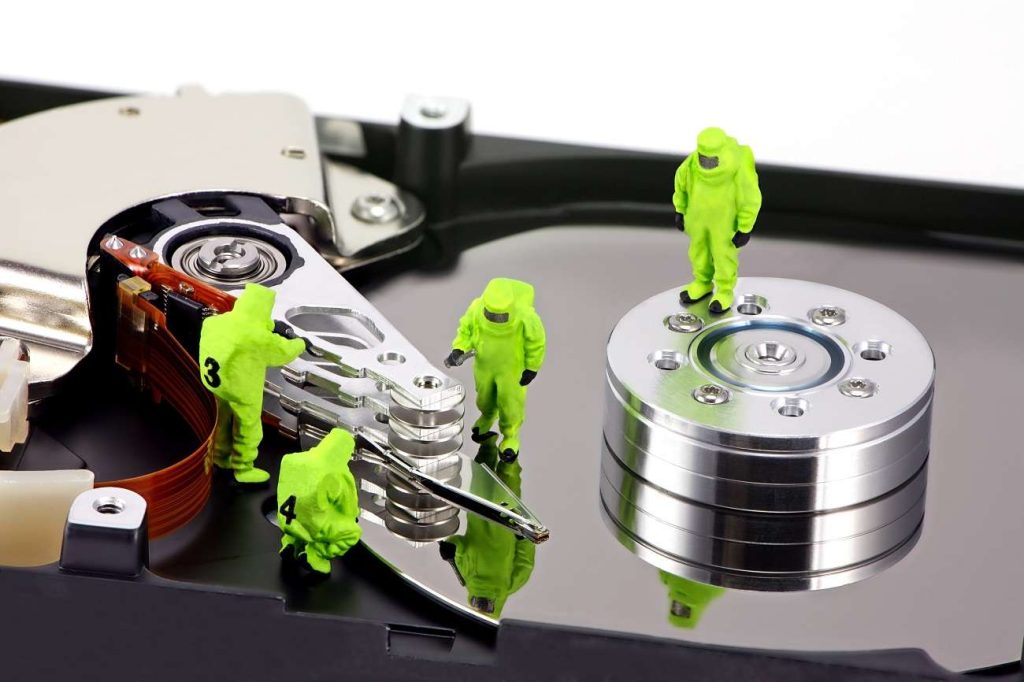
Hard drives, both internal and external, store some of our most important data. Unfortunately, they are not immune to failure. Many people don’t realise how easy it is for a hard drive to fail in a computer. So, when was the last time you backed up your data? Have you checked? Crashes, accidental deletions, malware, and mechanical wear can all result in lost files. Knowing how to retrieve data from a hard disk can save critical documents, photos, and videos.
This guide covers how hard drives get damaged, types of recovery of hard disks, practical recovery methods, and when to seek professional help.
How a Hard Drive Gets Damaged
Logical Damage
Logical damage occurs when the hard drive’s hardware is fine, but the file system, partition table, or data itself becomes corrupted. Common causes include:
- Accidentally deleting or formatting files
- Malware or ransomware attacks
- Software crashes or improper ejection (especially for external drives)
Physical Damage
Physical damage refers to mechanical or electronic failures that prevent your drive from functioning normally. Examples include:
- Broken read/write heads or platters
- Failed motor or controller board
- Severe wear from long-term use
Both internal and external drives can suffer logical or physical damage, and understanding the type is crucial for recovery of hard disk.
When upgrading or replacing a failing drive, many users choose SSDs over traditional HDDs because they are faster, more durable, and less prone to mechanical failure, although both types still require regular backups.
Is It Possible to Recover Data from a Dead Hard Drive?
The short answer is yes. It is possible to recover data from hard drive, but the method depends on the type of damage:
- Logical damage can often be fixed using software or backups.
- Physical damage may require professional services or specialised tools.
However, before attempting data recovery, check whether the problem is simply that your external hard drive is not showing up in Windows. In many cases, issues such as a loose USB connection, missing drive letter, or outdated drivers can prevent the drive from being detected, and resolving them may restore access without the need for advanced recovery methods.
It’s important to act quickly. Continued use of a failing drive can overwrite recoverable data, reducing the chances to recover info from the hard drive successfully.
Types of Data Recovery
Logical Damage Recovery
For logical issues, recovery usually involves software solutions or restoring backups. Common tasks include:
- Scanning for deleted or corrupted files
- Repairing the file system
- Recovering overwritten or lost partitions
Physical Damage Recovery
Physical damage is more complex and typically involves:
- Replacing failed components (for internal drives)
- Using professional cleanroom services to recover data from mechanically damaged drives
- Imaging the drive to extract whatever data is still readable
Even external hard drives with physical damage often require professional tools to safely recover hard drive data.
Ways to Recover Deleted Files from a Dead Hard Drive
Whether it’s an internal or external drive, there are several reliable ways to recover data from a hard drive safely. Some methods are software-based. But others rely on backups or professional intervention. Here’s a detailed breakdown:
1. Disk Imaging (Byte-to-Byte Backup)
Before attempting recovery, create a full byte-to-byte copy (disk image) of the failing drive. This preserves the original data in its current state and prevents further loss if the drive deteriorates during recovery. Disk imaging works for both internal HDDs and external drives. Once the image is created, you can attempt recovery of hard disk data on the copy without risking the original drive.
2. Data Recovery Software
Recovery software scans your drive for lost or deleted files and reconstructs them. Popular data recovery tools like Recuva, EaseUS Data Recovery, Disk Drill, and Stellar Data Recovery. These programs are useful for:
- Accidental deletions
- Formatted drives
- Corrupted partitions
External HDDs often face logical issues from unsafe ejection or malware, making software recovery a practical first step.
3. Restore from Backups
If you’ve been proactive, restoring from a data backup is often the simplest and safest method. This includes:
- External backups stored on another hard drive or NAS
- Cloud-based backups: Even for external HDDs, if you regularly copy data to a secondary device, restoration or recovery of the hard disk can be instant and avoid any risk of further damage.
4. Built-In OS Backup Tools
Modern operating systems include native tools for hard disk drive recovery to help recover lost data or files:
File History (Windows)
Windows users can leverage File History to restore previous versions of files or folders. This feature keeps shadow copies or automatic snapshots of your files and can be useful for hard disk drive recovery without additional software, making it a reliable option for data backup in Windows. Both internal and external drives can benefit if the external drive was included in File History backups.
Time Machine (Mac)
Mac users can use Time Machine to recover deleted files or restore the system from previous snapshots. For external drives, Time Machine can back up the data, making recovery straightforward even if the external drive fails.
5. Cloud Backups (OneDrive, Google Drive, Dropbox)
Cloud services often save copies of important files automatically. If your internal or external hard drive crashes, files synced to the cloud can be restored immediately. This method is particularly useful for external drives prone to accidental disconnection or malware exposure.
6. Recycle Bin / Trash Recovery
Sometimes the solution is simple. If you have Windows, check your system’s Recycle Bin. If you use a Mac, check Trash to see if any recently deleted files are present. Even external drives connected to a system may store deleted files in the system’s temporary trash folder, allowing easy recovery before permanent deletion.
7. Boot from a Live USB / External OS
If your internal hard drive’s operating system is failing, you can boot your PC using a live USB or external OS. This lets you access your files without relying on the damaged system, and you can copy data to a safe location. This is particularly useful if your internal drive has OS corruption or external drives are not being recognised due to software conflicts.
When to Seek Professional Data Recovery Services
If your drive shows any of the following, professional repair help is recommended for recovery of the hard disk:
- Clicking, grinding, or unusual noises (HDD)
- Drive not spinning or no LED activity (SSD)
- Impossible capacity readings
- Critical files at risk
- Repeated access errors or corrupted partitions
At Computer Mechanics, we help you safely recover data from internal and external hard drives, whether the issue is logical or physical. We use a variety of professional software and systems, including Linux when needed. Our experienced team in Perth provides fast, reliable, and professional data backup and data recovery services for all types of storage devices and maximises the chances of retrieving your important files, even if you’ve already tried other solutions.
Preventing Future Data Loss
Prevention is better than cure. You should protect your data with these practices below:
- Regularly back up to another internal/external drive or cloud
- Use disk imaging for critical systems
- Avoid unsafe removal of external drives
- Use surge protectors and avoid abrupt shutdowns
- Install and deploy reputable antivirus software for malware and ransomware prevention
Conclusion
Losing access to a hard drive can be stressful, but understanding the type of damage and following the right recovery methods can save your data. Internal and external drives can both be restored using a combination of software, backups, disk imaging, and, when necessary, professional services. Always act quickly and carefully to maximise the chances to retrieve data from the hard disk.
FAQs
Q1: Is it possible to recover data from a wiped hard drive?
Yes, it is possible to recover info from a hard drive if the wiped data hasn’t been overwritten. Using a disk image to preserve the drive’s current state and reliable recovery software can significantly increase the chances of successfully recovering data from a hard drive.
Q2: Can I recover data from an external hard drive that isn’t recognised?
Yes, especially if the problem is logical, such as a corrupted file system or accidental deletion. Methods include recovery software, restoring from cloud backups, or using professional data recovery services if the drive has suffered physical damage.
Q3: Does recovery software work to recover info from a hard drive?
Recovery software is effective for logical issues like accidental deletion, formatting, or corrupted partitions. However, it cannot fix physically damaged drives, and professional intervention is needed in those cases.
Q4: How can I maximise my chances of recovering hard drive data?
- Stop using the drive immediately to prevent overwriting lost data.
- Create a disk image (byte-to-byte backup) before attempting recovery.
- Use reliable recovery software for logical issues.
- Seek professional data recovery services for physically damaged drives.
Q5: Does Computer Mechanics help recover my hard drive data?
Computer Mechanics provides professional data recovery services for both internal and external hard drives. We can handle logical issues using software recovery and backups, as well as physically damaged drives with specialised cleanroom equipment. Our experts ensure maximum chances of retrieving your important files safely and efficiently.
