

You click Format, the progress bar finishes, and your drive is suddenly empty. Then it hits you: that was the wrong drive. Years of photos and work files, apparently gone in seconds.
Take a breath, because it isn’t always over. A quick format usually wipes only the drive’s index, not the files themselves, so your data often survives until something new is written over it. Stop using it immediately and don’t save, install or repair anything on it. Hard drives are more forgiving than SSDs, which can clear data quickly through TRIM.
This quick guide covers what to do immediately, how to tell a quick format from a full one, what to avoid, and when it’s time to call an expert.
Is Your Data Really Gone?
Not necessarily. Formatting doesn’t shred a drive the way people often imagine. A quick format clears the file system’s index, the “map” that tells your computer where each file lives, and sets up a fresh, empty one. Your photos, documents and videos usually stay exactly where they were until new data is written over them.
The catch is that every new file saved to the drive can permanently overwrite some of your old data. That’s why speed and restraint matter so much while recovering the lost data.
What To Do Immediately
If you’ve just realised the mistake, work through these steps in order.
- Stop using the drive: Don’t save, copy or install anything on it. If it’s an external drive or USB stick, safely eject and unplug it. If it’s the drive your computer runs from, shut the computer down instead of carrying on.
- Don’t format it again, and don’t try to “fix” it: Ignore any prompts asking you to format or initialise the disk. Avoid repair tools such as chkdsk, because they write to the drive and can overwrite lost files.
- Don’t install recovery software on the same drive: Installing a program onto the formatted drive can overwrite the very files you want back. If you plan to try software, use a different drive or computer.
- Note what happened: Write down which drive it was, what was on it, whether Quick Format was ticked, whether it’s a HDD or SSD, and whether Windows has been reinstalled since. A technician will ask for these details.
- Listen to the drive: If it’s clicking, grinding, beeping or not showing up at all, there may be a physical fault as well. Stop powering it on and get it checked.
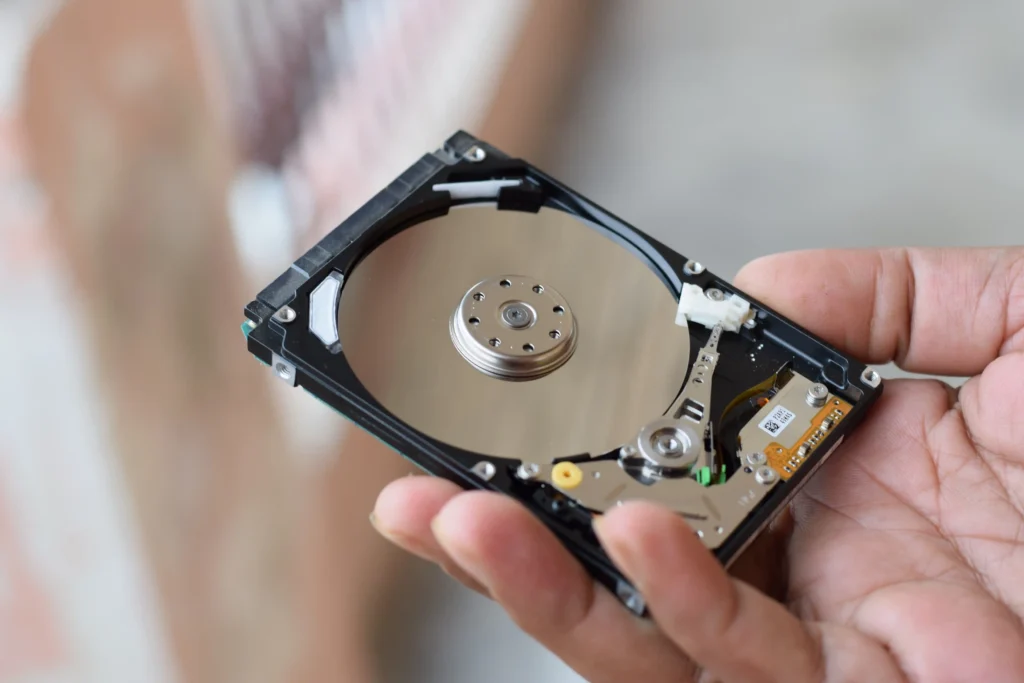
Quick Format Or Full Format?
The type of format makes a big difference to your chances.
- Quick format: Removes the index but leaves most of the data in place. This gives you the best chance of recovery.
- Full format: On modern versions of Windows, this typically writes over the whole volume as well, which can destroy the old data. Recovery is much less likely.
- Formatting during a Windows reinstall: The new system writes many gigabytes of fresh data, so some of your old files are likely to be overwritten. Partial recovery may still be possible.
- Secure erase or wiping tools: These are designed to destroy data permanently, so recovery is very unlikely.
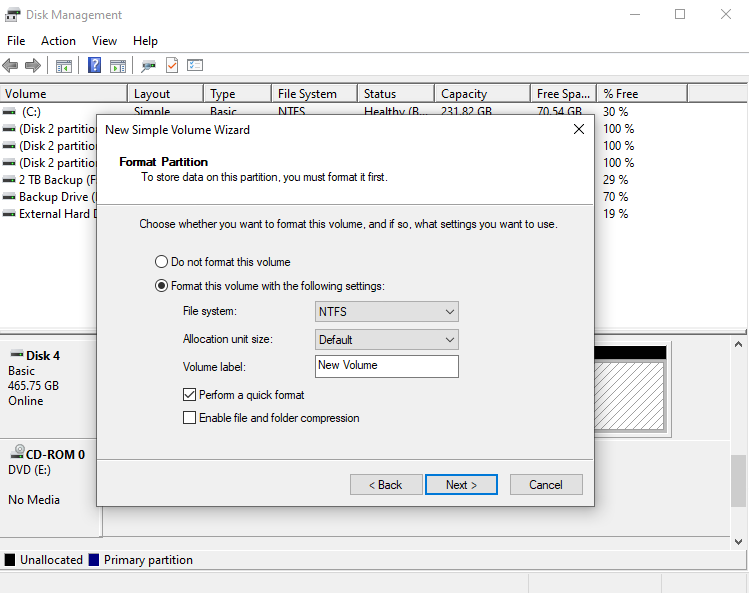
In Windows, you can usually tell which one you used by whether the “Quick Format” box was ticked. If you’re not sure, a technician can often tell by scanning the drive.
Can Your Data Be Recovered? It Depends On The Drive
Three things matter most: how much has been written to the drive since, what kind of format it was, and what kind of drive it is.
- Hard disk drives (HDDs): HDD recovery are the most forgiving. Old data generally sits quietly until something overwrites it, so if you stopped using the drive straight away, your chances are reasonable.
- Solid-state drives (SSDs): SSD recovery are the tricky ones. Modern computers send a TRIM command that tells the SSD which blocks are no longer in use, and the drive can then clear them in the background. That can shrink your window from days to hours, or less. If it’s an SSD, don’t leave it running. Power it down and get it assessed quickly.
- USB drives and memory cards: These behave much like hard drives, and they’re often formatted by accident in cameras, TVs and game consoles. Stop taking photos or saving files to the card straight away, because new data goes into the same space.
Nobody can promise a full recovery. Some files may come back damaged or without their original names, and the only way to know is to have the drive scanned.
Use this table as a quick check:
| Your situation | Recovery outlook | Best next step |
| Quick format on a hard drive, nothing saved since | Often possible | Stop using it, then scan from another drive or have it assessed |
| Quick format on an SSD | Time-sensitive | Power down and get a professional assessment quickly |
| Full format or secure erase | Low | Professional assessment only |
| Windows reinstalled after the format | Partial at best | Stop using the drive and get it assessed |
| Drive clicking, beeping or not detected | Physical fault likely | Don’t power it on again; call a professional |
Should You Try Recovery Software Yourself?
Sometimes, but it carries risk, and it’s only worth considering in one situation: a quick format on a healthy hard drive or USB stick, where nothing has been saved since.
If you decide to try, follow these rules:
- Install and run the software from a different drive or another computer. Never from the formatted drive.
- Scan the formatted drive without writing to it.
- Preview files before recovering them. A file can appear in the results but still be damaged. If it opens properly in the preview, that’s a good sign.
- Save recovered files to a different drive, never back onto the one you’re recovering from.
- Stop straight away if the drive makes unusual noises, disconnects, throws errors or the scan crawls.
Recovered files often lose their original names and folder structure, and some will be corrupted. Free tools such as Microsoft’s Windows File Recovery run from the command line and have limited features, which makes them harder to use well.
The real danger is that one wrong click, such as saving to the wrong place or repeatedly scanning an unstable drive, can make recovery harder for everyone, including the professionals. If the files matter more than the cost of getting help, skip the DIY attempt.

When To Stop And Call A Professional
Get expert help if any of these apply:
- The drive is an SSD.
- It was a full format, a secure erase, or Windows was reinstalled afterwards.
- The drive is clicking, beeping, not detected or keeps disconnecting.
- The files are business records, financial or legal documents, or irreplaceable photos.
- You’ve already tried software and files are missing or damaged.
- You’re not sure which drive you formatted or what was on it.
If you’ve already had a go yourself, tell the technician exactly what you tried. It helps them work out what’s still recoverable.
How To Avoid This Mistake Next Time
A few habits make accidental formatting much less likely:
- Check twice before you click Format. Confirm the drive letter, label and capacity. A 1TB drive and a 64GB USB stick look very different on paper.
- Unplug drives you don’t need. When formatting a USB stick or reinstalling Windows, disconnect other drives so they can’t be selected by mistake.
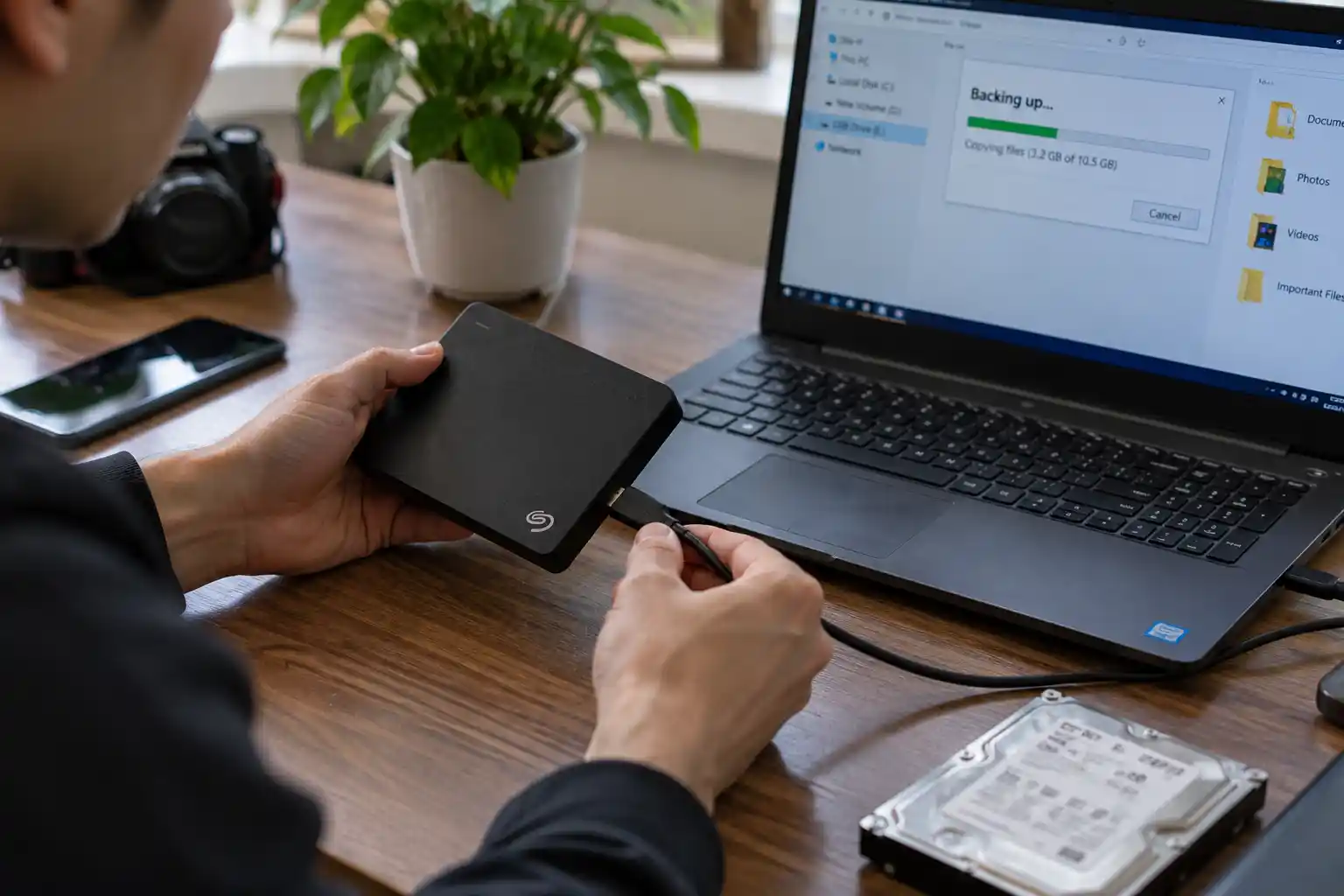
- Keep a backup. Keep important files in at least two places, such as your computer plus an external drive, with a cloud copy as a third layer. We can help with data transfer and backup if you’d like it set up properly.
How Computer Mechanics Can Help
If the files matter and you’d rather not risk making things worse, bring the drive to our Perth CBD workshop. Computer Mechanics diagnoses the drive first, then works to recover your data safely, whether it came from a laptop, desktop, SSD, USB stick or external drive. We’ll be upfront about what’s realistic before you commit to anything.
We can help with
- Quick and full formats on hard drives and SSDs
- Formatted USB drives, SD cards and external drives
- Drives formatted during a Windows reinstall
- Drives that have already had recovery software run on them
Formatted the wrong drive? Contact us now!
Frequently Asked Questions
1. Can I recover files after formatting a hard drive?
Often, yes. After a quick format, the files are usually still on the drive until new data overwrites them. A full format, a secure erase or an SSD’s TRIM function lowers your chances, and no one can guarantee a full recovery until the drive has been scanned.
2. Does formatting delete everything permanently?
Not usually. A quick format only clears the drive’s index, so the data stays in place for a while. A full format on modern Windows typically writes over the whole volume, and a secure erase is designed to destroy data for good.
3. How long do I have before the data is gone?
There’s no fixed deadline for a hard drive, but every file saved to it reduces your chances. For an SSD the window can be hours or less because of TRIM, so power it down and get it assessed quickly.
4. Should I turn off my computer if I formatted the drive it runs on?
Yes. Windows constantly writes temporary files and updates to its own drive, which can overwrite lost data. Shut the computer down, and run any recovery from another computer or a separate drive.
5. Can I recover data from an SSD after formatting?
Sometimes, but it’s harder than with a hard drive. TRIM tells the SSD which blocks are free so it can clear them in the background. Switch it off straight away and have it assessed by a professional.
6. Can I recover a formatted USB drive or SD card?
Often, if it was a quick format and nothing new has been saved. Memory cards are commonly formatted by accident in cameras, TVs and consoles, so stop shooting or saving files to the card as soon as you notice.
7. How much does professional recovery from a formatted drive cost?
It depends on the drive type, its condition, how it was formatted and how much data you need back. The only reliable way to get a price is to have the drive assessed, so ask for a quote before you commit.
