

There’s nothing more distracting than sitting in a quiet room or a meeting and hearing your laptop fan blaring. Loud fan noise is not just annoying, it’s also a sign that your system is overheating or struggling to perform. This is a common problem that affects many laptop users, but ignoring it can lead to more serious issues.
From dust buildup to hardware problems or even outdated software, several factors can cause your fan to spin louder than usual. In this guide, we’ll explore some common reasons behind loud laptop fan noise and practical ways to fix them, reduce heat, and improve performance.
Causes of a Loud Laptop Fan
There are lots of different reasons that could make your laptop fan sound so loud. One of the most common reasons is that your computer generates a lot of heat and the fan is having to work extra hard.
The other top reason for a loud computer fan noise includes:
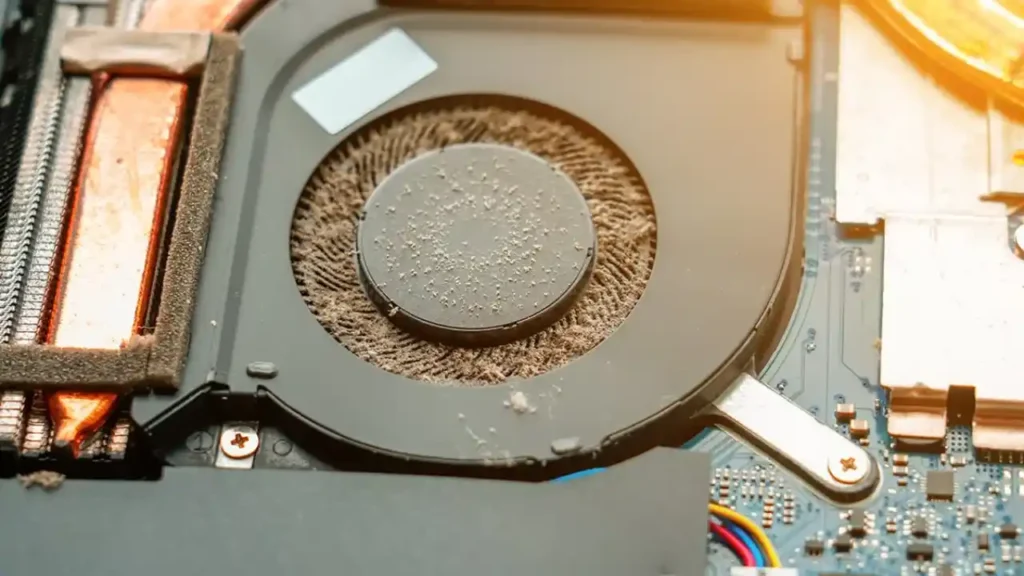
1. Dust buildup in air vents and fans blade
Dust is one of the common causes of loud laptop noises. Dust like pet furs, hair, fabric fibers and some debris clog the air vents and blades of the fan which obstructs the proper air circulation in the system and makes the fan work hard to maintain the temperature.
2. High CPU or GPU usage
High CPU consumption programs like Video Editing, Gaming, Mining and operating too many tabs in your browser, makes the processor work hard for too long, leading to rise in GPU temperature and making your laptop fan spin faster to cool down the sensitive electrical components of your laptop.
Close the power-hungry programs to cool down the hardware instantly by:
- WINDOWS – (Ctrl + Shift + Esc) open Task Manager, Identify resource heavy programs via CPU and GPU column and END TASK for them.
- MAC – (Cmd + Space) open Activity Monitor, Review CPU and Energy tabs and Quit Power-Hungry Programs.
Tip: Learn how to check CPU temperature or do a quick CPU temp check using tools like Task Manager, BIOS, or third-party apps. Knowing how to check CPU temp helps you detect overheating early.
3. Poor ventilation
When you leave your laptop on soft surfaces (like a sofa or bed), you may block the bottom air vents that are used for cooling. If this occurs, the cooling fan has to work harder to cool off the computer. To help improve air flow and decrease the noise of your laptop’s fan, make sure to place your computer on a hard surface, such as a desk or table, or use a stand that has air vents in it.
4. Outdated software, drivers or BIOS
Old BIOS updates, drivers or Windows/MacOS versions can cause insufficient power management which will lead to higher system temperatures and loud CPU fan noise. This not only makes your fan louder but may also cause instability issues like your pc keeps freezing or lagging unexpectedly.
5. Hardware problems
Faulty hardware such as a worn-out fan motor, damaged bearings, or failing internal components can produce grinding or rattling noises. In more serious cases, hardware faults can also lead to crashes or situations where your computer restarts randomly without warning.
6. Malware or virus infection
A loud laptop fan is also one of the signs of Malware which can push your laptop to run hot by running CPU to 100% in the background which will cause the constant loud fan noises.
Use a reliable anti-virus software to scan and remove malware.
How to fix a loud laptop fan?
A loud laptop fan is usually caused by laptop overheating or due to some poor airflow, but there are some practical solutions you can try at home to reduce the noise and keep your device running smoothly:
1. Clean Dust from Fans and Vents
- Use compressed air to clean the vents.
- If you are confident in opening the back panel of your laptop, clean the fans gently.
- Focus on both air intake and exhaust areas.
2. Update Drivers, Software and BIOS
- Visit your laptop brand’s official support site :
- Update Drivers (Chipset and GPU drivers)
- Latest BIOS update
- Install brand’s official Control App, which will let you select Quiet/Silent profiles that prioritizes low noise over max performance, often with smarter fan behavior than Windows Default.
3. Run a Full Malware Scan
- Use Windows Security or Malwarebytes for a deep scan to remove any viruses.
- Check Resource Monitor for unusual high-usage processes beyond Task Manager basics.
- Limit startup items more aggressively.
4. Slow Down a Heavy Apps or Games
- In game – Set a frame cap to 60 or 75 fps or Turn on V-Sync.
- Video editing / Streaming – lower preview size or turn on “ Proxy” mode.
This will transform heavy apps into a chilling mode where laptop fans produce loud noise, battery lasts longer and you wont notice the differences.
5. Shut Down Your Device and Let it Rest.
- Shut down your device and let it cool down for some time.
- When your device is off, you might want to put it on a stand or raise it slightly above a flat surface to let more air flow around it.
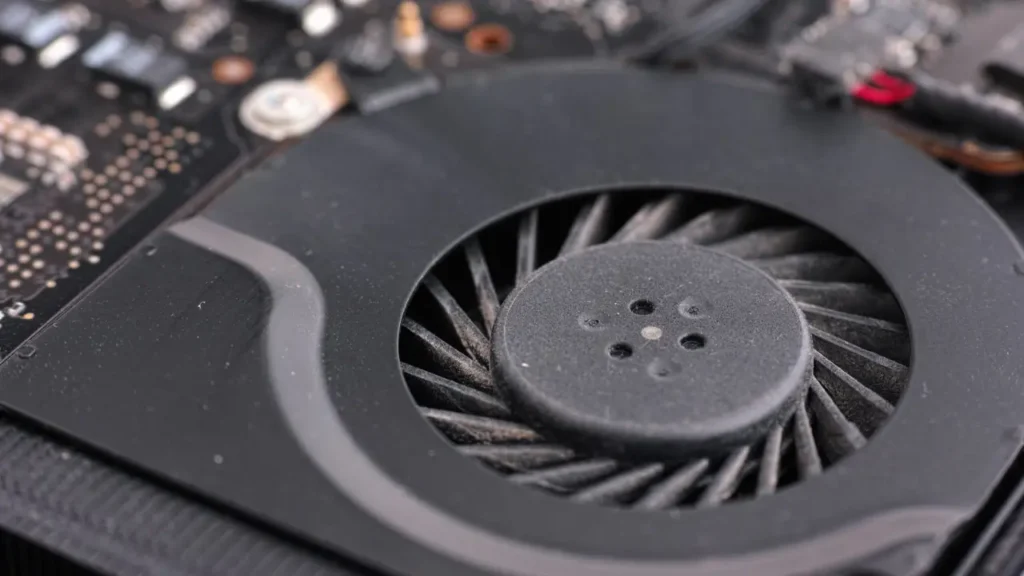
6. Check for Fan Damage and Replace if Necessary
- Check for any visible cracks or broken wires if they are still making loud noises.
- Replacing broken, old, or malfunctioning fans can make a big difference in how much noise they make.
For the replacement, it would be easier and safer to get help from professionals, like Repair experts of Computer Mechanics.
When to Seek Professional Repair?
Try all the above mentioned steps first. If the fan problem continues, it’s time to call for expert help such as computer mechanics, who provide computer and laptop repair services in Perth. Our team provides hardware diagnosis, fan replacement, thermal paste reapplication, general laptop servicing and fix both hardware and software issues that may be causing loud fan noise or overheating.
Signs that your laptop may require repair:
- Grinding or rattling loud fan noise.
- The fan spins at full speed when the system is idle.
- The laptop auto shutdown due to overheating.
- The loud CPU fan problem continues after cleaning.
- The noise suddenly starts after a spill or drop.
Conclusion
A loud fan noise in a computer is usually a sign that the system is trying to manage excess heat. Whether it’s due to dust buildup, blocked air vents, too many programs running in background or due to outdated BIOS updates. There are several ways to reduce the laptop fan noise.
Cleaning your laptop, keeping sufficient airflow and performing routine maintenance on your laptop are the basic methods to keep your laptops running cool. However, if you are unable to resolve any issues with the fan noise by trying to resolve the issue yourself, you will need to have a computer mechanic service your laptop as soon as possible.
Frequently Asked Questions
1. What are the causes of loud fan noise?
Some of the major causes of loud fan noise are:
- Dust and Dirt Build Up.
- High CPU or GPU usage
- Poor Ventilation
- Malware or Virus Infection
2. How do I stop my laptop fan from being loud?
- Use Task Manager to end unnecessary background applications to reduce fan workload.
- Clean fans and ventilation ducts with compressed air to remove dust and debris.
3. How do I fix fan noise on my laptop?
- Reduce system heat and improve airflow to address fan noise.
- Close heavy applications running in the background.
- Update drivers and BIOS to ensure optimal performance.
4. Can I still use my laptop if the fan is loud?
Yes, you can surely continue working on your laptop regardless of how loud the fan is. But, if the CPU fan runs and sounds loud most of the time, or if your laptop is running very hot most of the time, your laptop could be overheating and could potentially damage internal components.
5. Is a 25dB fan loud?
No, a 25dB computer fan is considered very quiet. Most laptop computers create noise levels between 25 dB to 40 dB when they are used normally on a day to day basis.
