

Your graphics card is one of the most powerful and heat-sensitive components in your system. Whether you’re deep in a gaming session, rendering a project, or crunching complex data, maintaining the temperature of the GPU is one of the most important things you can do to protect your hardware. Push it too far without realising it, and you’re looking at throttled performance, unexpected crashes, or permanent damage.
In this guide, we’ll break down exactly what a normal GPU temperature looks like across different workloads, how to monitor it, and proven ways to keep it in a safe, healthy range.
Why GPU Temperature is Important
High GPU temperatures can lead to thermal throttling, system crashes, or even permanent hardware damage. In worst-case scenarios, sudden crashes or hardware failure may cause data loss and require professional data recovery to retrieve lost files.
Maintaining a healthy GPU temp ensures your graphics card performs optimally and lasts longer. If your GPU constantly runs too hot, it could also affect other components like your CPU or motherboard. If you’ve ever wondered why your pc randomly freezes, GPU overheating is one of the most common and often overlooked causes.
Monitoring the average temperature of GPU under different loads helps you identify potential problems early, preventing costly repairs or replacements.
What is Thermal Throttling?
Thermal throttling is a safety mechanism built into GPUs. When a graphics card reaches its maximum operating temperature, it automatically reduces clock speeds to prevent overheating. While this protects the hardware, it can cause frame drops in games, slow rendering in video software, and overall reduced PC performance.
Knowing your GPU temperature range allows you to spot throttling before it impacts your work or gameplay. Keeping both your GPU and CPU temperatures within their normal temperature is essential for maintaining stable performance and protecting your PC hardware.
Typical GPU Temperature Ranges
Your GPU temperature will vary depending on the workload. Below is a simple reference table for GPU temperature and safe ranges:
| Usage Scenario | Temperature Range (°C) | Approx. Load | Notes |
| Idle / Low Load | 30–50°C | 1–10% | Normal GPU temp at rest. Higher temps may indicate airflow or dust issues. |
| Gaming / Medium Load | 60–75°C | 40–70% | Healthy GPU temp for smooth performance. |
| Heavy Load / Stress Testing | 85–95°C | 70–100% | Upper safe limit. Prolonged exposure may reduce GPU lifespan. |
Idle / Low Load Temperatures
When your GPU isn’t working hard, like when browsing the web or streaming videos, temperatures should generally stay between 30–50°C.
If your idle GPU temperature is consistently higher than 50°C, it may indicate dust buildup, poor airflow, or a failing fan.
Gaming / Medium Load Temperatures
During gaming or moderate workloads, the average GPU temp typically ranges between 60–75°C, depending on your GPU model and cooling solution.
- A healthy GPU temperature during gaming ensures smooth frame rates without risking long-term damage.
- Keep in mind that laptop GPUs often run slightly warmer due to compact cooling designs.
Heavy Load / Stress Testing Temperatures
When stress testing or performing GPU-intensive tasks like rendering, temperatures can spike up to 85–95°C.
- This is usually safe for most modern GPUs, but prolonged exposure at the upper limit can shorten laptop lifespan.
- Understanding your GPU temperature range helps decide if an upgraded cooling solution is necessary.
Factors That Affect GPU Temperature
Your GPU temperature is influenced by multiple variables. Understanding them can help you optimise performance and maintain a normal GPU temperature.
- GPU Model and Architecture
Different GPU models and architectures run at different temperatures. High-performance GPUs like NVIDIA RTX 4090 or AMD Radeon RX 7900 XT generate more heat due to higher core counts and clock speeds. Older GPUs may run cooler, but inefficient cooling can still lead to high average GPU temp.
- Cooling Solution (Air vs Liquid)
- Air Cooling: Common in most desktops, effective for mid-range GPUs, and easier to maintain. However, dust buildup can reduce efficiency, increasing GPU temperature.
- Liquid Cooling: Found in high-end systems or custom builds, provides more consistent temperatures, especially under heavy load. Ideal if you frequently push your GPU close to maximum usage.
- Ambient Temperature
The room temperature significantly affects your GPU. A GPU operating in a 30°C room will naturally run hotter than one in a 20°C room. Even with good cooling, a high ambient temperature can push the GPU temperature toward the upper safe range.
- Workload and Overclocking
Tasks like 4K gaming, rendering, or cryptocurrency mining increase GPU usage, raising heat. Heavy tasks and overclocking significantly increase heat output, sometimes leading to instability such as pc restarting randomly if not properly managed. If you overclock, make sure your cooling solution can handle the extra heat.
- Case Airflow and Dust Accumulation
Poor airflow traps hot air around your GPU, raising the temperature. Dust on fans or heat sinks blocks cooling efficiency, increasing GPU temperature and affecting the average GPU temperature.
How to Check GPU Temperature
Monitoring your GPU temperature is essential for maintaining a normal GPU temp, avoiding thermal throttling, and ensuring optimal performance. Here are practical ways to check your GPU temperature:
1. Using Windows Task Manager
Windows 10 and 11 provide a simple way to check your GPU temperature without installing extra software.
Steps:
1. Press Ctrl + Shift + Esc to open Task Manager.
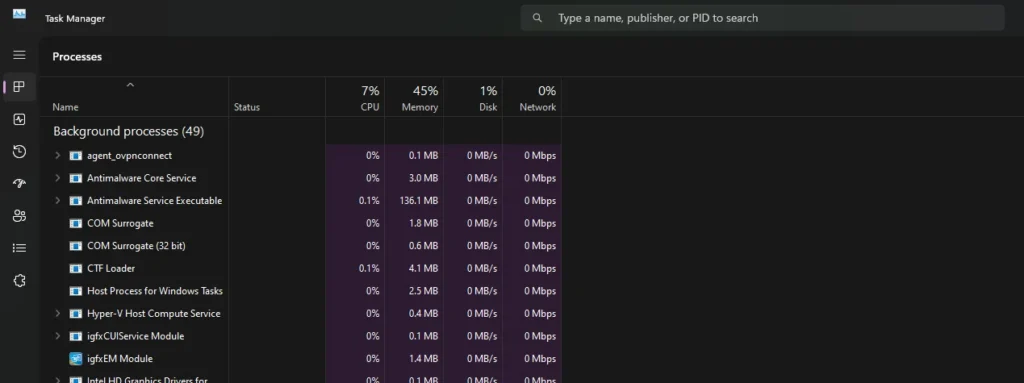
2. Click on the Performance tab.
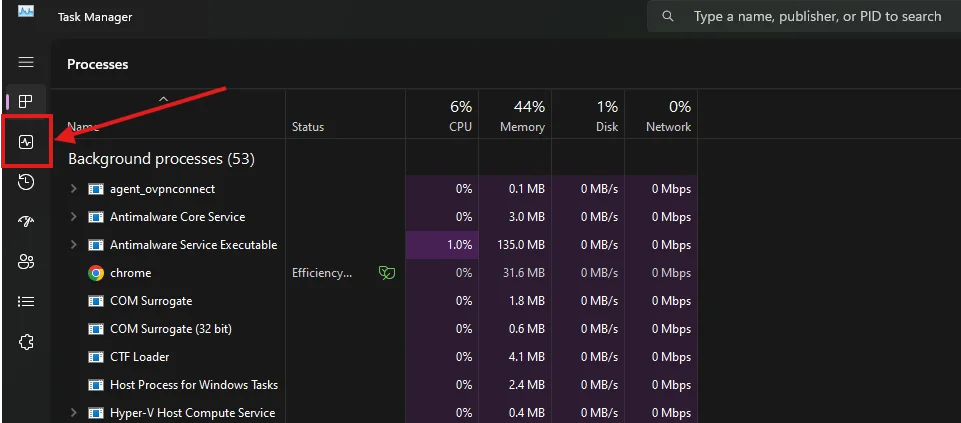
3. Select GPU to see the current temperature and usage.
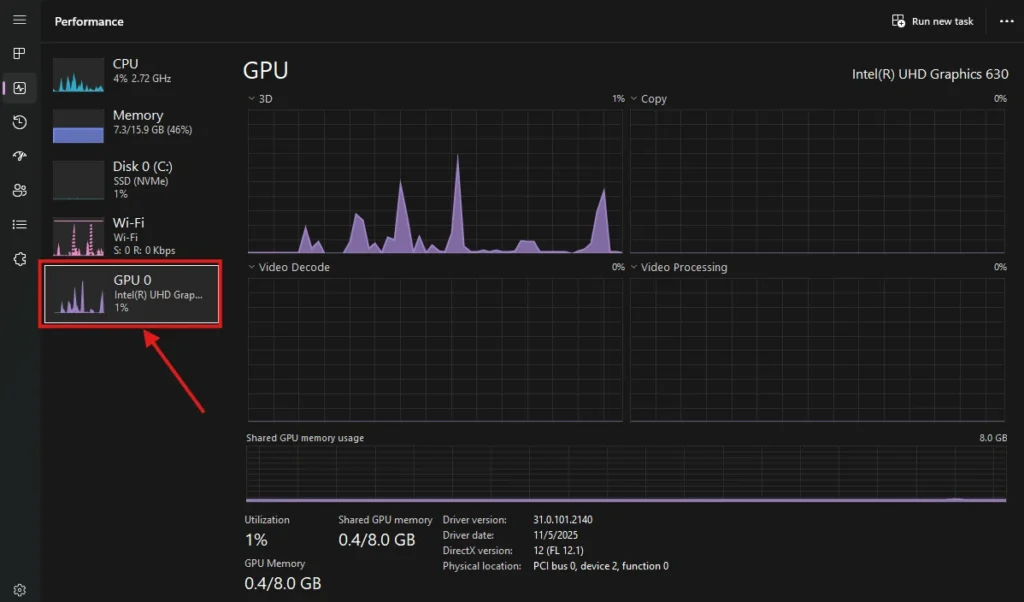
This method is ideal for quick checks, especially to see your idle GPU temperature or average GPU temperature while gaming. It won’t show fan speeds or historical logs but is very convenient.
2. Using BIOS/UEFI Hardware Monitoring
You can also monitor GPU temperatures directly from your BIOS/UEFI firmware. This gives baseline readings before your OS and applications start.
Steps:
- Restart your computer and press the BIOS key (usually F2, Del, or F10).
- Navigate to Hardware Monitor or PC Health Status.
- Locate GPU temperature readings.
Useful for checking idle GPU temps or confirming that your cooling system is working properly.
3. Use of Third-Party Tools
While built-in methods are sufficient for most users, free and lightweight tools like HWMonitor, GPU-Z, and MSI Afterburner offer a more detailed look at your GPU health. Beyond just temperature, they track fan speeds, voltages, clock speeds, and log minimum and maximum values over time, making it easier to monitor your GPU temperature across different workloads.
4. Stress Testing for Load Temperatures
To see how your GPU behaves under heavy usage and check your average GPU temp while gaming:
Steps:
- Use a simple GPU stress-testing tool like FurMark or run a demanding game.
- Monitor temperatures via Windows Task Manager or BIOS/UEFI.
- Compare your GPU temperatures against safe ranges for your model.
Keep an eye on the temperature to avoid overheating. Most GPUs are safe below 85–95°C during heavy loads.
How to Maintain and Reduce GPU Temperature
Regular computer maintenance plays a major role in keeping your GPU within a normal temperature range, ensures smooth performance, prevents thermal throttling, and prolongs its lifespan.
1. Improve Case Airflow
Good airflow reduces heat buildup around your GPU, helping it stay within a healthy GPU temp.
- Add intake and exhaust fans to increase circulation inside the PC case.
- Avoid blocking vents and fan areas with objects or walls.
- Organise cables neatly to minimise airflow obstruction and hotspots.
2. Clean Dust and Debris
Dust buildup on fans, heatsinks, and vents reduces cooling efficiency and raises idle and average GPU temp.
- Use compressed air or soft brushes to remove dust from GPU fans and heatsinks.
- Clean case interiors and vents regularly to prevent dust accumulation.
- Check vents and openings for dust buildup that could restrict airflow.
3. Reapply Thermal Paste
Thermal paste helps transfer heat from the GPU chip to the cooler. Old or dried paste increases GPU temperature, so reapplying thermal paste is essential.
- Carefully remove old thermal paste using isopropyl alcohol.
- Apply a thin, even layer of new thermal paste on the GPU die.
- Ensure the GPU and cooler surfaces are clean before reassembly.
4. Adjust Fan Settings
Proper fan settings maintain GPU temperature without unnecessary noise.
- Set custom fan curves using your GPU’s software to respond to temperature changes.
- Increase fan speed under heavy load or gaming for better cooling.
- Balance fan speed and noise for comfort during regular use.
5. Reduce GPU Workload
Lowering GPU demand reduces heat generation and keeps average GPU temperature under control.
- Reduce in-game graphics settings such as resolution, shadows, and effects.
- Close unnecessary background applications that may use GPU resources.
- Limit multitasking during gaming or rendering to reduce heat spikes.
6. Upgrade Cooling Solutions
High-performance and overclocked GPUs may need advanced cooling to maintain a healthy GPU temp.
- Consider aftermarket air coolers or liquid cooling solutions for better thermal management.
- Liquid cooling works particularly well for high-end GPUs or gaming rigs.
- Ensure your PC case supports the chosen cooler and allows proper airflow.
- Check that cooler installation doesn’t obstruct other components.
7. Monitor Temperatures Regularly
Tracking GPU temps helps detect overheating issues early and prevent damage.
- Monitor both idle and load temperatures to identify unusual spikes.
- Keep a log of average GPU temperature over time to spot trends.
- Take corrective measures if temps consistently exceed safe ranges for your GPU model.
If your GPU continues to overheat, or if you’re unsure about tasks like reapplying thermal paste or upgrading cooling solutions, Computer Mechanics in Perth provides expert computer and laptop repair services. Our team can diagnose temperature issues, clean and maintain your cooling system, and ensure your GPU stays within a healthy GPU temperature range.
Conclusion
Maintaining a normal GPU temp is critical for performance, stability, and longevity. By understanding typical temperature ranges, monitoring heat, and implementing cooling solutions, you can keep your GPU running efficiently, even under heavy workloads or gaming sessions. Regular computer servicing and preventive maintenance are the best ways to protect your investment.
FAQs
1. What temperature should my GPU be?
A good GPU temperature depends on workload and GPU model. For most modern GPUs:
- Idle / Light Use: 30–50°C
- Gaming / Medium Load: 60–75°C
- Heavy Load / Stress Testing: 80–85°C.
2. Is 50°C hot for a GPU?
No. 50°C is actually a safe temperature, especially for an idle GPU. It’s within the normal range and indicates your cooling system is working effectively. Even under light gaming or moderate tasks, this temperature is considered comfortable for most desktop and laptop GPUs.
3. How often should I monitor GPU temperature?
The frequency depends on your usage:
- Casual Users: Check occasionally or after driver updates.
- Gamers / Heavy Users: Monitor during long sessions or high-demand workloads.
- New Builds / Overclocked Systems: Check whenever you change fan settings, cooling solutions, or overclock parameters.
Regular monitoring ensures your GPU stays within the normal GPU temperature range and avoids overheating.
4. Can software fix GPU overheating issues?
Software cannot physically reduce GPU heat, but it can help manage temperatures:
- Adjust fan speeds or curves to increase airflow.
- Reduce GPU power consumption or undervolt the card to lower heat.
- Receive temperature alerts to avoid unsafe operation.
Hardware solutions, like cleaning dust, improving airflow, or upgrading the cooling system, are necessary to truly solve overheating problems.
5. What is the average GPU temp while gaming?
The average GPU temp while gaming is usually 60–75°C, depending on factors like game intensity, GPU model, cooling solution, and ambient temperature.
High-end GPUs with effective cooling may remain below 70°C even under demanding loads, whereas compact laptops may reach 75–80°C. Short spikes above these numbers are normal, but prolonged temperatures over 85°C may reduce GPU lifespan.
6. Can GPU overheating permanently damage my graphics card?
Yes, While modern GPUs have built-in safety features like thermal throttling to reduce temperatures, prolonged overheating can shorten the lifespan of your graphics card and, in severe cases, cause permanent hardware damage. If your GPU regularly exceeds its safe temperature range, improve cooling, clean dust from the system, or have the cooling system inspected to prevent long-term damage.
